(Show Contents)
Overview: Changing the Structure of the Database
This section of ARCHIBUS System Management Help contains procedure topics on the key tasks of changing the structure of the database by editing the . For information on what changes affect the structure of the database, see What Constitutes a Structural Change to the Database?
General Procedure for Changing the Structure of the Database
When database structure changes are initiated by changing the ARCHIBUS data dictionary, the procedure for changing the physical structure of the database is as follows:
- Using native database tools, make a backup of your database for safe keeping.
- Use the Database Update Wizard to export a copy of the data dictionary tables. Save these files as a backup of the state of the data dictionary before you start making changes. (See How to Transfer Data Out.)
- Make your changes to the data dictionary, as described below.
- Use the Schema Change Wizard to apply your changes to the physical database. (See Starting the Schema Change Wizard.)
- Restart the application server.
- Restart the application.
- Migrate the schema changes to other databases.
- Assuming that your facility has a development environment, it is presumed that the above procedure would be completed and tested in a development environment.
- Following successful testing, these changes would then be migrated to either additional test environments (such as beta test) or to production instances of the project.
- Before migrating the changes, you will want to compare the changed schema with the project databases so that you are aware of the exact changes that migrating will make. See
Accessing the Data Dictionary
You can access the Data Dictionary tables in both Smart Client and Web Central.
In Smart Client:
- Sign in to the Smart Client with an account that has system administration access.
- Select System Administration --> ARCHIBUS System Administration --> Add In Manager.
- Choose Edit ARCHIBUS Data Dictionary to edit the table definitions.
- Choose Edit ARCHIBUS Field Dictionary to edit the field definitions.
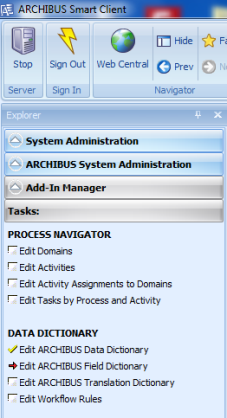
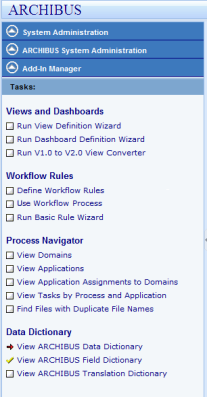
Table and field editing functions are also available in Web Central.
- Select System Administration --> ARCHIBUS System Administration --> Add In Manager.
- View ARCHIBUS Data Dictionary displays the table definitions. View ARCHIBUS Field Dictionary displays the field definitions. Both tasks include Edit buttons so that you can change table and field definitions.
See Also
What Constitutes a Structural Change to the Database?
Understanding the ARCHIBUS Database
How to Add a Field to the Data Dictionary
How to Add a Table to the Data Dictionary
How to Delete a Field from the Data Dictionary
How to Delete a Table from the Data Dictionary
How to Add a Document Field to the Data Dictionary
How to Add a Validated Field to the Data Dictionary
ARCHIBUS Tables table
ARCHIBUS Fields table