For each application, the Process Navigator lists all of the tasks required to achieve a specific business result, such as developing a lease abstract report.
To work through a Process Navigator application, you select its tasks. The tasks instruct the program to present any of the following types of items in the workspace portion of the application window.
The displayed items are known as a view into the data.
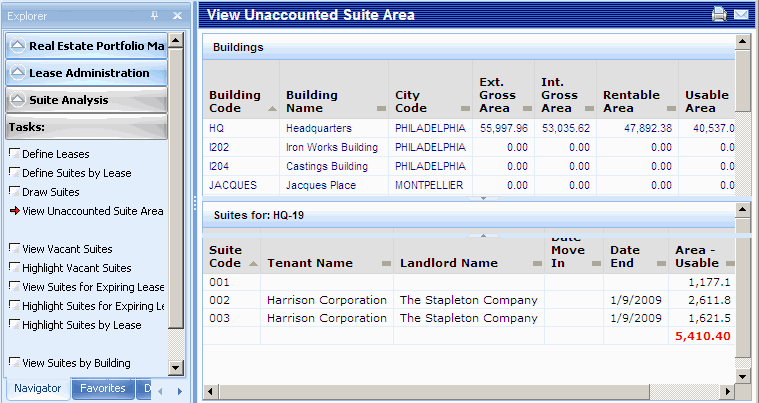
For example, the below image shows the results of choosing the "View Unaccounted Suite Area" task.
With security in effect, your Process Navigator will display only tasks and processes relevant to your role within the organization.
As you select new tasks, the system closes the current information and displays a new set of information corresponding to the selected task.
As you work through a Process Navigator, the system indicates your current task with an arrow icon. When you select a new task, the system adds a check mark icon to the previously selected task to indicate that you have already run this task.
To run a task
Click on a task in the Process Navigator. In the workspace area of the application window, the system displays the appropriate table or report. In Smart Client, it may present the Drawing List to prompt you to select a drawing to display.
Within Smart Client, the Process Navigator may include tasks for CAD Specialists. These tasks present the Drawing List so that you can choose a drawing to work with. Once you select a drawing from the list, ARCHIBUS launches the DWG Editor or the Overlay, opens the selected drawing, and activates the layers appropriate for the current task.
If these drawing tools are already open and you select a CAD tasks from the Process Navigator, these drawing tool applications become the active application and display the appropriate layers for the task at hand.
Within Smart Client, you can view previous and next tasks.