 See Also
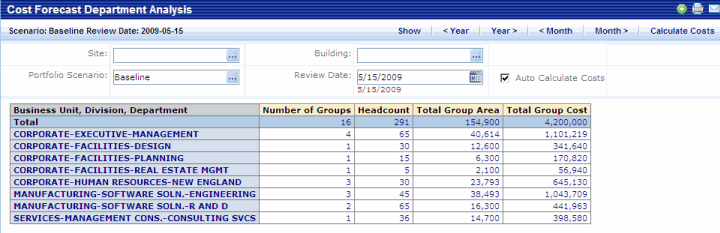
This report summarizes space and costs by department. For each department it shows the:
By default, the report presents data for the Baseline scenario and for all buildings, setting the Review Date as the current day. You can set the Site or the Building fields at the top of the screen to review the Department Analysis for a single Site or a single Building. You can also use the <Year, Year>, <Month, Month> buttons to shift the Review Date by a year or a month. See Selecting Review Dates.
If the Auto Calculate Costs checkbox is selected, the program will always recalculate costs prior to refreshing the data. If you clear the selection for this checkbox, you can calculate costs as needed using the Calculate Costs button. See Auto Calculating Costs.
You generate this report by selecting Cost Forecasting/Cost Forecast Department Analysis from the Process Navigator.
Note that if you do not select a site or a building, this report will calculate and allocate costs across all buildings. If you select a site, the calculations will apply to all the buildings on the site.
This is the same report as shown on the Cost Forecast Wizard's Department Analysis tab, but when you generate the report directly from the Process Navigator, you can generate the report for all buildings, or for a particular site. From the Department Analysis tab the report is always generated for a particular building.
The below image shows the Cost Forecast Department Analysis Chart. You can click on a cell to see the group records that contributed to the summary.
See Also