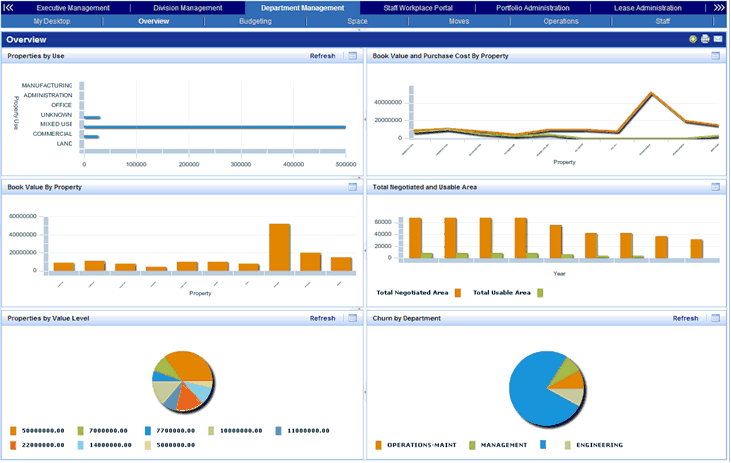
Dashboards present multiple views on one screen, providing easy access to information that you need to accomplish your facilities management goals. When you access a dashboard, it displays information that is geared specifically to your job and your personal preferences. For this reason, the dashboard that you access might be different than the dashboard that is accessed by other employees.
In many views, you can examine summary (View Analysis) statistics in tables, graphs and charts. You can also drill down to statistic details. For more information see Working with Summary (View Analysis) Views.
Dashboard views can be loaded by tabbed dashboard navigation, from the Process Navigator, or as a selection on your My Favorites list.
For example, you can load the Buildings Dashboard as a task on the Process Navigator by selecting Portfolio Administration/Buildings/Building Dashboard task. Or, you can load this view by selecting the Portfolio Administration Dashboard from a top-level tab, and then selecting the Buildings tab from a second row tab. You could also add the Buildings Dashboard to your My Favorites list to access it from this list.
When you log on, either the Process Navigator or a dashboard view appears, depending on the Navigation field preference set in your User Profile. If your user role includes a dashboard assignment, you are able to toggle between these views by selecting the Show Navigator/Show Dashboard buttons on the upper right corner of the Web Central window.
If you have a Dashboard view loaded, you can also show the Process Navigator by selecting the small gray triangle at the left of the dashboard view. The following image shows the triangle:

You can right-click views in the Process Navigator, then drag and drop the view onto your dashboard to add this view to your dashboard layout. To access this feature:
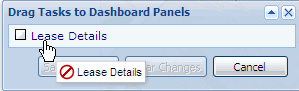

Note: You can add only V1.0 views to dashboards that have V1.0 views, and V2.0 views to dashboards that have V2.0 views. (The reason is that the V1.0 view dashboards use iFrames while the V2.0 dashboards use a single frame divided into a layout.)
Note: When dragging and dropping views, you will get the best results with views that you have defined using the View Definition Wizard and placed on the Process Navigator. These views follow all of the conventions required for dashboard views. Views that are created by hand may not follow these conventions.
Each view included in a dashboard includes a Maximize icon  in the panel title bar, a feature that lets you “zoom in” and enlarge one dashboard panel, such as a chart, to see it in detail. The enlarged view replaces the dashboard panels. Clicking the Close button closes the enlarged window, and returns you to the dashboard view.
In some cases, certain functionality, such as filtering data is only available from the maximized view. For example, from the Portfolio Administration/Buildings Dashboard, the Filter and Report buttons are available only when you maximize the chart view.
See Also