The View Conversion command-line utility converts 1.0 view files to their 2.0 format equivalents. It:
The view conversion utility does not convert old-style 1.0 views: XSL-based views, views without panels, MDX and MDX chart views. These views run in backward compatibility mode, which is slower than 2.0 mode.
The View Converter is located in the Process Navigator under System Administration > Business Process Owner > Run V1.0 to V2.0 View Converter. The view allows you to select a domain and application. All the tasks for that application are displayed in the report in the main panel.
At the top of the main panel are three buttons: Analyze Views, Convert Views and Display Last Log. The Analyze and Convert buttons at the top operate on all the tasks listed in the report. In each report row there are also two buttons, Analyze View and Force Conversion, that operate on the single task of that row.
The Analyze Views and Analyze View buttons run the converter in noWrite mode. In this mode the converter generates a report, but the conversion is not written to disk and the original view remains in place. The Convert Views and Force Conversion buttons will write all successful conversions to disk, replacing the original views after backing them up to originalName_bak.axvw in the original directory.
The Convert Views button at the top attempts to convert all tasks in the current application, but will fail the conversion if any of the following conditions are true:
The Force Conversion button in the row will convert that task’s views even if they use JavaScript or XSL, and will insert a missing panel element based on the type of the afmTableGroup. This option will also convert views with nested afmTableGroups by converting each nested afmTableGroup into a top-level dataSource and panel. For each panel except the first, the panel’s showOnLoad attribute is set to false. If the afmTableGroup is of type=’report’ the panel fields are all links refreshing the next panel.
Each Analyze or Convert button action produces a fresh last-conversion-log file per user. This log file is displayed in a dialog at the end of the process, and can be seen again, without running the conversion process, using the Display Last Log button at the top of the main panel. Each Analyze or Convert button action also updates the database’s afm_ptasks.comments column noting whether the task is convertible, already converted, or why it cannot be converted automatically.
You can run the view converter as a command-line utility. Depending on the options that you supply, it can convert a single file, a folder with files (i.e. application), or a complete folder tree (i.e. product).
The convenience script, convertView.bat, located in the schema\ab-core folder takes several arguments. It requires the path to the view or directory that is to be converted as one input argument. The utility also takes several optional arguments:
convertView [-logVerbose] [-reportBrief] [-noWrite] [-passJS] fileOrDirectory [WEB_INF_DIR]
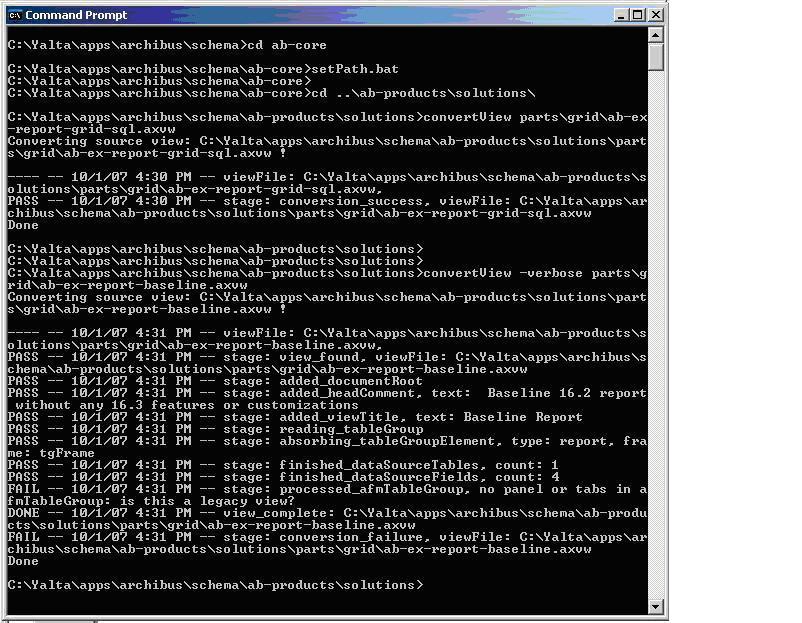
When the converter is done converting a view it writes the updated view to the original directory and backs up the 1.0 view to that directory by changing its filename to ‘originalName_bak.axvw’. A status report will be written to the console for each view that it tries to convert. An example screenshot can be seen below.
The path to the view or directory to be converted must be given relative to the current directory. For example, if you would like to convert all the views located below archibus\schema\ab-products\workplace\reservations\view, you can call the command line utility using the arguments as shown below:
C:\Program Files\Afmxx\tools\tomcat\webapps\archibus\schema\ab-products > convertView workplace\reservations\view
or
C:\Program Files\Afmxx\tools\tomcat\webapps\archibus\schema\ab-products\workplace\reservations > convertView –logVerbose view
The status report contains a line for each major step in the conversion and a final status line stating whether the conversion passed or failed. By default the full status report is written to conversion.log and the summary line is written to the console. By using the optional argument –logVerbose the whole report can be written to the console. This is useful for failed conversions to see whether the view is a legacy view or is there is a syntax problem within the view.
The converter can be run in an analyze mode using the –noWrite flag to give a report without actually converting the views. In this case, the original view(s) will not be overwritten. The additional optional arguments are described in detail in the comments to convertView.bat.
In the screenshot below, the first conversion passed and the second failed because the view is considered a legacy view – it has no panel element. Prior to running the converter, the bat file setPath.bat adds ab-core to the PATH so that you can run the converter from any application directory without using the absolute path to convertView.bat.
You may copy and modify the script to suit your needs if you’d like to use it in a different directory. The script contains some internal variables that will need to be modified to adapt to the directory structure where you move the script.
Pre-existing Solution Templates views have been converted to 2.0 format. 2.0 views are distinguished from the old-style views by their AXVW format. 2.0 views start with:
<view version="2.0">