Smart Client Extension for AutoCAD
Smart Client DWG Editor

Resizing Area Asset Symbols

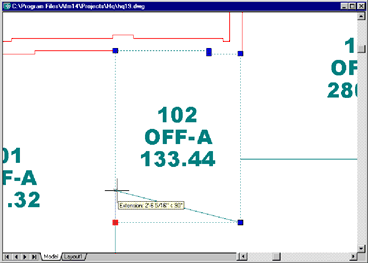
To reshape or resize an area asset symbol, you use the grip editing features of AutoCAD just as you would with a regular polyline. When you resize an area asset symbol, ARCHIBUS automatically updates the database with the new area.

floor plan drawing showing grip editing of an asset symbol

To resize an area asset symbol

  1. Activate the drawing program and the drawing containing the asset symbol you wish to resize.
  2. Select a Process Navigator task to set the layer for the type of asset you are working with. For example, if you want to edit rooms, choose the Set Rooms task. Or, click the ARCHIBUS/Asset/Set Asset Layer command from the Ribbon.
  3. Click on an asset symbol. Grip handles appear on each vertex.
  4. Drag the vertices until the polyline is the correct size and shape.


    As you place each vertex in a new location, the drawing programs notice the change, update the area data stored in the database, and redisplay the asset text.
Copyright © 1984-2014, ARCHIBUS, Inc. All rights reserved.