A new version of ARCHIBUS typically includes an updated schema that has been changed to reflect new application features, corrections to existing applications, changes to the Process Navigator, and so forth.
If you want to use the new application features, you need to update the schema. The procedure below transfers all tables in your project to another project, which has a superset of the first project’s schema.
This procedure is for those sites that have a standard ARCHIBUS schema which has not been customized. If you have customized your schema, see How to Update your Customized Schema after Upgrading to a New Version of ARCHIBUS.
To read your data into the new superset schema:
You can now delete the transfer files in the \projects\users\<this user> subfolder.
For information on using the Database Update Wizard, see Database Update Wizard: Overview.
Note: When transferring your data consider that data is exported and imported from [archibus]\projects\(user). This means that you need to sign in as the same user on both databases. However, if this is not possible (for example, on V19.3, I sign in as "ai" and on V18.1 I sign in as "afm"), you can manually modify the folder name. For example, so that the 18.1 database can read the export from V19.3, you would rename [archibus]\projects\ai to [archibus]\projects\afm.
If you upgrade your copy of ARCHIBUS to a new version and do not want to take advantage of the new schema, you do not need to run this procedure. For example, if the new version of ARCHIBUS offers an application that your site is not implementing, you do not need to run this procedure. With very few exceptions, your applications and extensions will continue to work unchanged even if you do not upgrade your database. If a concern arises, you can see what is in the current revision of the database by reviewing the Database Schema Revision History. This help topic is organized most recent revision first and provides a description of the changes in the database through time.
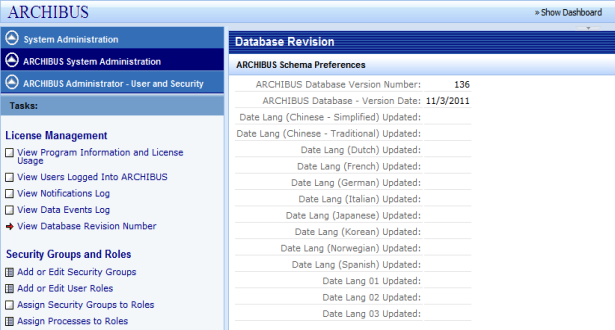
To see if you have the most current database version, you can view your installed database version from the View Database Revision Number task of the System Administration/ARCHIBUS Administrator - User and Security process:
| Copyright © 1984-2014, ARCHIBUS, Inc. All rights reserved. |