Ouvrir la rubrique avec les liens de navigation
Space planners and project managers may want to mark up floor plans and images to show proposed changes, notations, and highlights and then share these mark-ups with others in the organization. Markup drawings are associated with action items, which are part of a project's work packages. When working with the Space & Portfolio Planning Console, if your scenario is linked to a project, you can add markups to your plans and image.
Markups can include:
Note that the room highlight features are available only for floor plans and not images.
Note: This topic is describing the redline and mark-up features that are included in ARCHIBUS V22.1 views that use the HTML5 drawing control. Older views that use the Flash drawing control offer a similar, but different, set of redlining features. For information on Flash-based redlines, see Adding Redlines to Drawings.
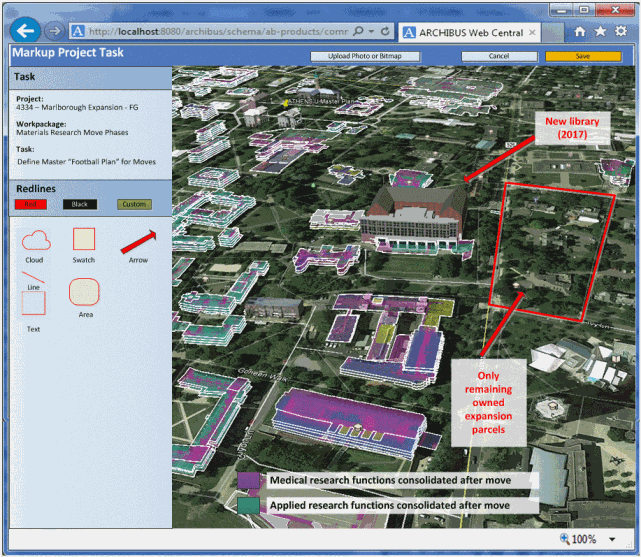
The below image of a map includes a legend, redlines, and text boxes to note current holdings and potential expansion areas. In this case, the user captured an image of a map and added the highlights using another program; they then added the redmarks and legends using Web Central. For floor plans, you can highlight rooms directly in Web Central using the mark-up tools.
Once you are satisfied with your markups, choose the Save button. The Save button is disabled until you add a redline to the drawing, or resize or delete an existing redline.
After saving, you can then access the marked-up image or floor plan by using the document field of the associated action item.
Web Central saves the mark-up information in the ARCHIBUS Redlines table (afm_redlines).
If you are exporting and importing markup into and out of the project, be aware of the following:
In order to access the markup when you import it back into the project, both the activity_log record and the afm_redline record must be exported. If only the activity log record is exported , when the record is imported back in, the Edit Markup button will not show in the view; the view will show only a button for Create Mark-up, and this button will not show the markup.
From the Space & Portfolio Planning console, choose the desired action item, and click Mark Up Action Item.
If the action item references a floor that has a floor plan drawing, the system automatically loads the floor plan drawing and presents the markup tools in the left pane.
In addition to marking up floor plan drawings, you can select the Upload Photo or Bitmap button to search for a bitmap image you want to mark up and store as a document. For example, you may want to capture a GIS or Google Earth map or scan a site plan. You may want to edit this image to add highlights or other notations not available with the markup tools. You can then save the image and upload it to further notate it using the mark-up tools.
Note: The mark up features require that the CAD drawing be published in SVG format. For information, see Publishing Drawings as Enterprise Graphics.
You can add redlines to drawings and images to point out specific areas. For example, you may want to circle a room on a floor plan drawing that needs to be reconfigured as part of a space reorganization.
The Redlines panel offers several tools for marking up your floor plans and images.
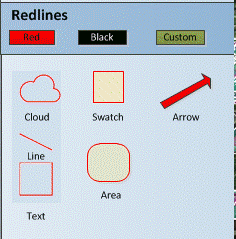
Drag and drop the redline controls from the palette to the desired area of the drawing. If you wish to use a color other than the default red, you can select Black or a custom color. All future redlines will use this color until you change the color again or exit. If you set a custom color, the panel will display the Custom button in this color.
You can use the text tool and the swatch tool to create a legend of your highlight colors.
If you are working with a floor plan drawing, the left-hand panel includes the options for adding highlights to your floor plan. Highlights are not available for images.
Once you add a highlight, you can use the swatch and text tools to create a legend explaining your highlight colors.
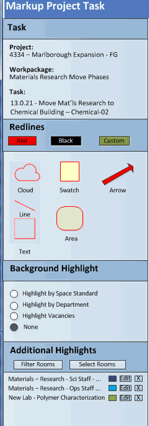
There are a few types of highlights:
Restriction highlights cancel any existing plan type highlights.
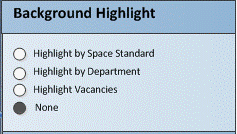
You can highlight the rooms in a floor plan by space standard, department, or vacancy.
Instead of the defined highlights, you can highlight a select set of rooms or highlight rooms by a filter restriction. The Restriction Highlights form lists the highlights you have defined and provides options for creating new highlights. If you define multiple highlights, the system applies them to the floor plan in the order in which they were created. If a room is subject to multiple highlights, the system applies the highlight that was last added to the list of highlights.
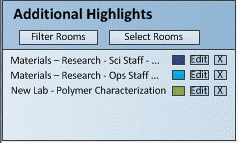
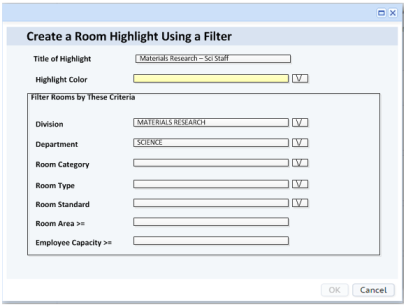
For example, you may need to highlight all rooms of a particular standard that are larger than a particular size because these rooms are not adhering to the standard definition and need to be examined. Choose Filter Rooms and use the resulting form to define this restriction, assign a title, and specify a highlight color. The restriction title and highlight color will now appear in the "Restriction Highlights" form.
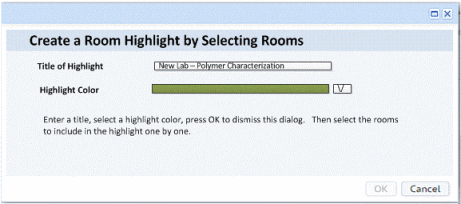
If you need to highlight a set of rooms that do not meet set criteria, you can define the highlight color and title and then select the set of rooms in the floor plan. Once you select the rooms, the system returns you to the Restriction Highlights form, which will list your new highlight.
| Copyright © 1984-2016, ARCHIBUS, Inc. Tous droits réservés. |