The ARCHIBUS Enterprise Move Management application provides a web-based application for managing enterprise moves. You can move employees, teams, equipment, furniture, and rooms by working with two types of moves:
| Move Type | Description | How Tracked |
|---|---|---|
| Individual Move |
Moves an individual employee, equipment item, asset, or room. |
Tracked in a move order. |
| Group Move |
Moves multiple employees and assets at the same time. For example, you can request a group move when you want to move an entire department to a new location. |
Tracked in a group move project. Each item to move is tracked with a move order. |
As a move progresses, the automated workflow rules ensure that the appropriate employees and consultants receive email notifications so that the move can efficiently progress to the next phase.
The Enterprise Move Management application provides a move scenario feature, which you can use to visually compare various proposed layouts of space (layout scenarios) and employee placements (occupancy scenarios). This helps you determine to which locations to move employees. When you are satisfied with a particular move scenario, you can update the group move project with the move scenario's "to" locations.
Prerequisite: Review these concepts:
Move planners work with a move scenario by performing these tasks:
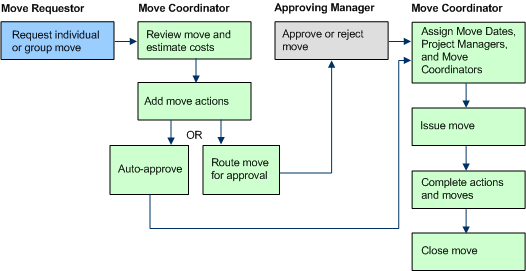
The diagram below displays a simple Move Management workflow, which covers the basic steps of requesting a move, routing a move for approval, approving a move, issuing a move, completing a move, and closing a move.
Note: The diagram does not include the processes for CAD operators, move scenario planners, craftspersons, and voice and data workers.
Click on a box in the below diagram to see the Help topic for that workflow step.
Users can use the Move Management application to perform various tasks, such as requesting a move, approving a move, editing a move, or examining a move's status. Each user has different move management tasks on their Process Navigator, based upon their role.
Move requestors, move coordinators, project managers, department contacts, approving managers, and craftspersons are sent email notifications at various stages throughout the move process.
For example, the move requestor and department contact are sent an email notification after a move request is made by the move requestor. Similarly, after the move coordinator has routed a move for approval, emails are sent to the move requestor, the approving managers, the department contact, and the move coordinator (individual moves) or project manager (group moves). Email notifications are also sent after the move is approved, after the move is issued, and after the move is closed.
Many move forms provide the ability to transfer move project data from your group move projects into XLS format, so that you can edit your data in Excel. You can then use data transfer to transfer in the edited data to update the move project.
The Data Transfer feature is available at various points in the move process. When requesting, editing, routing moves for approval, or issuing moves, use the Data Transfer button to invoke date transfer. The action affects the data on the active tab. For example, if you invoke Data Transfer from the Employee Moves tab, the data on the employee moves tab is exported; any data on the other tabs is not affected by the action. You can invoke data transfer from any of the move tabs (employee moves, new hires, employees leaving, equipment, assets, or rooms) in a group move. See Data Transfer Overview.
| Copyright © 1984-2018, ARCHIBUS, Inc. Todos los derechos reservados. |