You can also add an equipment item to the hierarchy by creating a record for it from the console. To do this, you select an item in the tree that has the master equipment for which you want to add another item.
Note: These steps describe adding an item under an existing item. For the steps to add a top-level item, see To add a top-level item to the System Assignments tree.
To add an equipment system to the system assignment tree:
- In the System Assignments tree, click the plus sign
 in the row for the equipment item that has the same master item as the asset you want to add.
Note: You might need to expand the System Assignments panel to see the buttons.
The Equipment System form appears. The Equipment Code Master is filled in with the code for the master for the equipment item for which you clicked the plus sign.
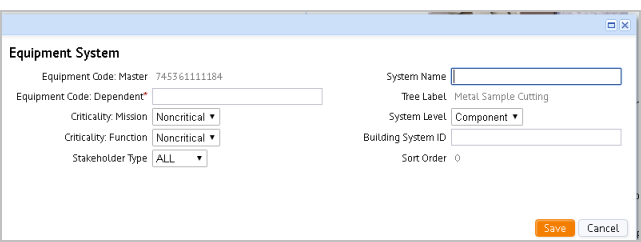
- Mouse over the Equipment Code Dependent field and click the ellipsis to access the Select Value form for selecting the dependent equipment asset.
- Click the asset in the list.
The Equipment form appears filled in with the identifier for the selected equipment.
- If needed, change the and By default, this is set to Noncritical, but you can select Support or Critical for this dependent asset.
- Enter a System Name if you want the label in the tree for this dependent item to be different than the Tree Label that the system generates.
- If you do not want all stakeholders to see this assignment, select a specific Stakeholder Type from the list. Otherwise, keep the selection to All.
- Click Save.
The dependent asset defined in this form appears in the System Assignments tree at the same level as the item you selected.
 Tips for defining equipment systems

 to drag it to the desired position in the System Hierarchy. The icon turns to a green check mark when you are in a position where you can add it to the hierarchy.
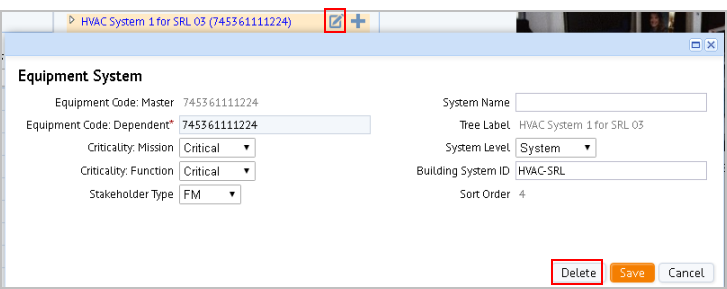
 in the row for the equipment item you want to delete or edit.