To create jacks for faceplates in your telecom inventory you can:
With this task, you define one or more configurations for each faceplate standard. The system will consult these configurations when you to automatically create jacks for faceplates.
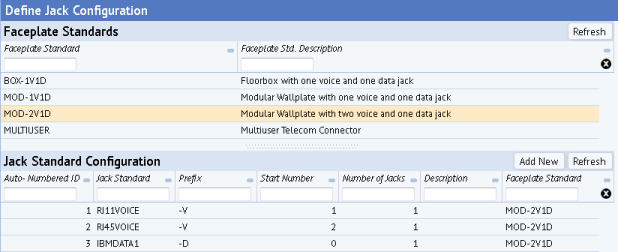
You typically want to develop configurations to reflect the voice and data jacks, and number these with prefixes to represent their role. For example, with the below configuration, the system will generate two voice jacks and one data jack; since there is only one data jack, it does not need a start number.
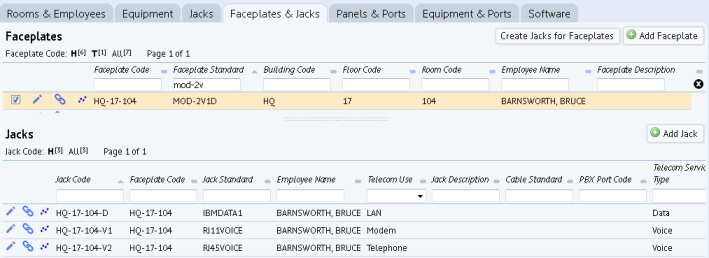
When you use the Telecom Console to automatically create jacks for faceplates, the system generates the jack numbers based on the faceplate ID and the configuration. For example, the system consulted the above configuration to generate the following jacks for faceplate HQ-17-104, which is a MOD-2V1D faceplate:
The Define Jack Configuration view opens.
The system lists the jack configurations for this faceplate, if they exist. .
| Field | Purpose |
|---|---|
| Jack Standard | Click the Select Value button to select an existing jack standard. To create a new jack standard, do so in the Define Jack Standards task. |
| Prefix | Create a prefix for each jack number. Typically, sites use V for voice and D for data jacks. |
| Start Number | Specify the start number for the jacks to create. If you enter 1, the first jack is numbered 1, the second is numbered 2, and so on. |
| Number of Jacks | Enter the total number of jacks of this jack standard to be assigned a number. |
| Description | If desired, enter a short description of the jacks to be configured. Ordinarily, the description will correspond to the jack standard. |
The new jack configuration appears in the Jack Standard Configuration list.
Note: You can also use the Jack Standard Configuration data record to modify specifications for an existing configuration, or to remove a configuration from the list. Changes appear in the Jack Standard Configuration list when you click Save or Delete above the form.
Automatically Create Jacks for Faceplates
| Copyright © 1984-2016, ARCHIBUS, Inc. All rights reserved. |