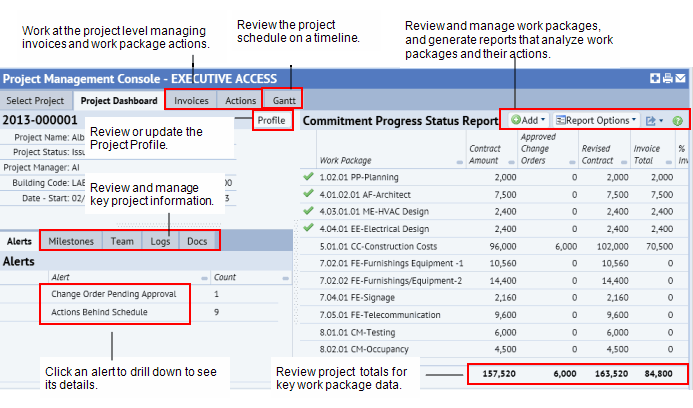
The Project Dashboard summarizes the most important project data in a single dashboard view. From the dashboard, you can review and manage comprehensive information for a project:
 Review or Update the Project Profile
Use the Profile button to open the complete Project Profile. The Profile includes detailed data, such as documents, costs, contacts, and the Project Manager for the project. Entering the Project Manager is important because for Manager access certain views are restricted to show only projects for which you are the Project Manager.
You can also update the Project Status from the Profile. For example, you can update the Project Status to Approved - In Design. Or, you can adjust the Date - Target Completion if this date has changed. Having accurate Project Status enables you to review projects by their status in the Project Status report. Also, the Project Analysis report provides the % variance for projects in the Design or Execution phases. These phases are based on Project Status.
Manage invoices, actions, and the project schedule using the Gantt chart
The Project Dashboard includes the following tabs at top of the dashboard.:
Working with alerts
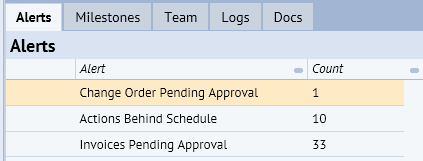
Alerts help focus your attention on the projects most needing it. From the Project Dashboard, you can review a list of alerts for the project. Clicking an alert brings you to a more detailed list for the items contributing to that alert. Clicking on an item in the list brings you to an edit form from which you can work with a specific item. See Drilling Down to Manage Alerts.
The following alerts are available in the Project Dashboard:
Review action milestones, team members, project logs and documents
The Alerts section includes a series of tabs that enable you to store key information for your project. The following shows the Milestone, Team, Logs, and Docs tabs next tot he Alerts tab in the Project Dashboard.
From the,Milestone Tab, you can add or edit milestones that mark critical junctures in the project's progress. Milestones are project action items, but with a special Action Type of ‘PROJECT – MILESTONE’. Create milestone actions to help you track project progress.
Milestones with a status of Completed or Closed, or with a Percent Complete value of 100% are marked with a green check mark.
From the Team tab. , you can add or edit information for team members. These team members can be company employees, or people outside the company – vendors or other contractors.
Note: When adding a Vendor, Craftsperson or Contact, you can select an existing value in the database or add a new value by clicking Add New.
To add a team member:
The list of available team members of the type selected appears.
The appropriate form appears.
The team members are shown in the list in the Team tab. They are added to the database as a contact, craftsperson, vendor, or employee. For proposed projects, the team members are also added to your Project Team, so that they can access the project.
From the Logs tab, you can add project logs to record the communications that you have had concerning a project. For example, logs can be used to attach amended or finalized contracts, to record that contracts have been signed and mailed, or to record project status notes. When you add the log, you can attach the document. After you have saved the log, its data becomes read-only except for the Priority setting:
To add a project log and attach a document:
Note: The only thing you are able to change after saving a log is the priority. If an issue has resolved, you would want to change the priority level to remove a log from the Alerts.
The Edit Details tab appears.
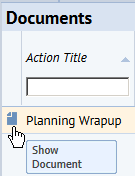
Attached documents can be opened directly from the grid by clicking on the document icon.
From the Docs tab, add or edit any documents or drawings associated with any action for the project. Documents added from this tab are also project action items, but with a special Action Type of ‘PROJECT – DOCUMENT’.
Note: The Docs tab also shows documents included with any type of action. Since both Milestones and Change Orders are types of actions, documents stored with either of these are shown here.
Note: If you create an action to store a document or drawing, it should be used specifically for this purpose. You should not assign any additional values to this action.
To add and view a document:
The Document Profile form appears.
The Attach tab appears.
To edit document details:
The Edit Document Details form appears.
Commitment Progress Status Report
The Project Dashboard includes the Commitment Status Summary report. This report summarizes the costs and progress of each work package. A green check mark indicates that the work package is completed. A work package that is 100% Invoiced is assumed to be Completed. See Commitment Progress Status Report.
| Copyright © 1984-2016, ARCHIBUS, Inc. All rights reserved. |