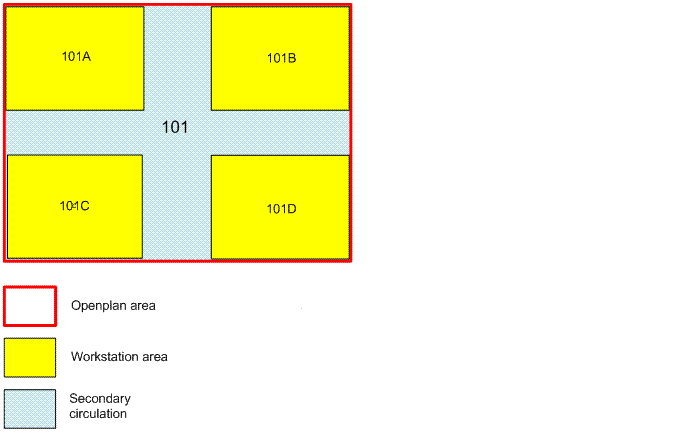
Organizations often need to account for the same space in different ways. To negotiate housekeeping contracts or to perform energy analyses, they need to sum the physical area. Yet to allocate space and charge departments for the use of space, they need to assign portions of the same areas, such as workstations, desks, or lab benches, to a department. Other organizations might be interested in a department's number of seats, rather than its area.
To accommodate these situations, you can create an open plan with workstations.
This topic has the following sections:
You can distinguish physical spaces (such as open plan areas) from logical spaces (such as workstations) by developing an open plan area room along with its component workstation rooms and using the Room Category to classify each space. With this "room within a room" approach, the inventory includes rooms for purposes other than rolling up their areas in space totals.
In the sample HQ project, you will see that the Room Category table offers OPENPLAN, OPENWKSTN, and WORKSTATION room categories for implementing this type of situation. A room category's Calculations Used In field ensures that the areas are not accounted for more than once.
Note: The above diagram labels the area between the rooms as secondary circulation area. The below discussion outlines different ways you can account for secondary circulation area in an open plan with workstations.
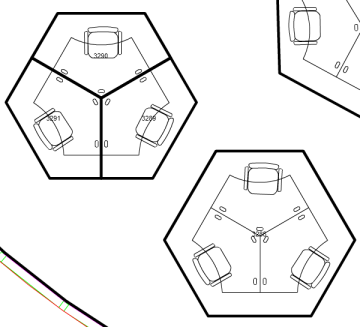
When working with the Team Space features, you might have several workstation areas within an open plan area. If you wish, you can track each workstation as a room. However, tracking the workstation area as one room and noting the occupancy of this area is usually sufficient when working with team space.
The NCO5-03 floor plan in the HQ project has examples of workstations tracked as individual rooms (WORKSTATION room category) and workstations tracked as one room (OPENWKSTN room category).
In the image below:
In general, follow these steps to create an open workstation floor plan which can be used for team space:
If all workstations in the open plan are used by one department, then you may want to assign the entire open plan room to the department. You would draw your workstations to have them available as rooms for operations (for example, so that you can assign maintenance work to these workstations), but would exclude the workstations from all area calculations. Secondary circulation area (the area between workstations) would be charged to the department.
In general, follow these steps:
If your open plan area is used by more than one department, then you can draw the open plan area as a room so that you have it available for operational tasks, such as housekeeping tasks, but you must exclude the open plan from calculations. You would then draw your workstations as rooms, assign them to departments, and use them to calculate area.
In general, follow these steps:
To outline secondary circulation in open floor plans, you can draw accurate polylines for secondary circulation using AutoCAD REGIONS. This means you do not have to use "lolypop" plines -- polylines that have concavities to subtract the enclosed areas.
Manually-created regions can also be used for other space planning situations, such as chargeback. Just as you can prorate a polylined area, you can prorate a region to all departments in a floor, building, or site. For example, if you are using the BOMA method of cataloging space, you could use regions to capture all circulation areas, and then prorate that space as needed to all departments on a floor. If the circulation needs to be prorated to only two departments in a certain area of a floor then multiple "outer boundaries" would need to be created.
Important. Use the steps documented below when creating the secondary circulation manually. If you create the regions without first copying them and moving them to a prototype layer, there is the potential to accidentally replace your current rm polylines.
Note: For organizations using the Post Secondary Classification Method for space (FICM), manually creating regions for secondary circulation would not be desirable since walls are excluded in this standard.
Tip: For regions that must be manually prorated to just two adjacent departments, or for finer classification of secondary circulation, the CAD specialist can split the region as follows.
1. Copy the region entity to be split.
2. Draw a temporary region over the area that should not be included.
3. Use the SUBTRACT command to subtract that area from the region.
To create regions manually for secondary circulation:
The Smart Client Extension for AutoCAD will:
In this way, the workstation highlights will always show, even though the region publishes as just its outer boundary.
Note: Even though the region publishes the outer boundary, the area of this secondary circulation in the database is the correct area.
With an open plan and workstations as described above, you need to take care when selecting the workstation and the open plan area.
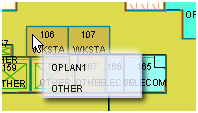
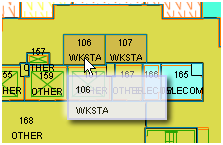
The change in color of the selected area gives you immediate feedback as to which area you have selected. You can also watch the tooltip: when the cursor is directly over the workstation’s labels, a click will select the workstation.
For instance, click with the tooltip as shown below to select the open plan area:
Click with the tooltip as shown below to select the workstation area:
| Copyright © 1984-2016, ARCHIBUS, Inc. All rights reserved. |