Open topic with navigation
Capital Project Management / Condition Assessment / Business Process Owner
Environmental & Risk Management / Environmental Sustainability / Business Process Owner
Asset Management / Asset Portal / Background Data
Asset Management / Asset Management / Business Process Owner - Asset Manager
Asset Management / Enterprise Asset Management / Business Process Owner - Asset Manager
Export and Import Classification Data
To import classifications and into ARCHIBUS, or export them from ARCHIBUS, open the Import/Export Classifications tab on the right-hand side of the Define Classifications view.
Note: When you import classifications from an Excel file, ensure numbering and placement of classifications in the spreadsheet show the desired hierarchy. ARCHIBUS imports classification data as is. Although you can edit individual classification records in ARCHIBUS, you cannot change the classification hierarchy after a data transfer is complete.
Export Classification Data
To export classifications:
- Load theDefine Classifications view from one of the above Process Navigator paths.
- Click the Import/Export Classifications tab in the right pane.
- Select the desired classification standard in the Top Level drop-down list.
- Click Show. The selected list of classifications appears.
-
Click the arrow icon at the far right, then select XLS or DATA in the drop-down menu.

If you select XLS, the system immediately downloads the classification list in an Excel file. See Exporting Data to Excel.
If you select DATA, follow prompts in the workflow to complete the transfer. See Exporting Data Using Data Transfer.
The export process writes the selected list of classifications to an Excel spreadsheet, or to a Comma Separated Values file.
Import Classification Data
To import classifications:
- Click the Import/Export Classifications tab in the right pane.
- Select the desired classification standard in the Top Level drop-down list.
- Click Show. The selected list of classications appears.
-
Click the arrow icon at the far right, then select DATA in the drop-down menu.
- Follow prompts in the workflow to complete the transfer. See Importing Data Using Data Transfer.
The import process updates the classifications table with the selected list of classifications.
Import Classification Standards that Ship with ARCHIBUS
Follow these procedures to import MasterFormat and OmniClass - Table 22 classification standards into your project.
Import MasterFormat Standard
To import classifications for the MasterFormat classification standard into your project, first export the standard as an Excel data file from the HQ sample database:
- In the HQ sample project, open the Define Classifications view.
- Click the Export/Import icon at the upper right, and select DATA in the drop-down menu.
- Transfer Out is selected in the Transfer Action tab. Click Continue.
-
XLS - Excel XML is selected in the Transfer Format tab. Click Begin Transfer.
- Wait until Job Complete appears in the Transfer Progress tab, then click csi.xlsx to download the Excel file.
Next, import the Excel file into your project:
- Open the Define Classifications view.
- Click the Export/Import icon at the upper right, and select DATA in the drop-down menu.
- In the Transfer Action tab, select Transfer In, then click Continue.
-
In the Transfer Format tab,Select Local File > Choose File, then select csi.xlsx in your Downloads folder. Click Begin Transfer.
-
Wait until Job Complete appears in the Transfer Progress tab.
The MasterFormat classification standard is imported into your project.
Import OmniClass - Table 22 Standard
-
From the Process Navigator, open the Database Update Wizard:
System Administration / ARCHIBUS System Administration / Add-In Manager / Data Dictionary / Run Database Update Wizard
-
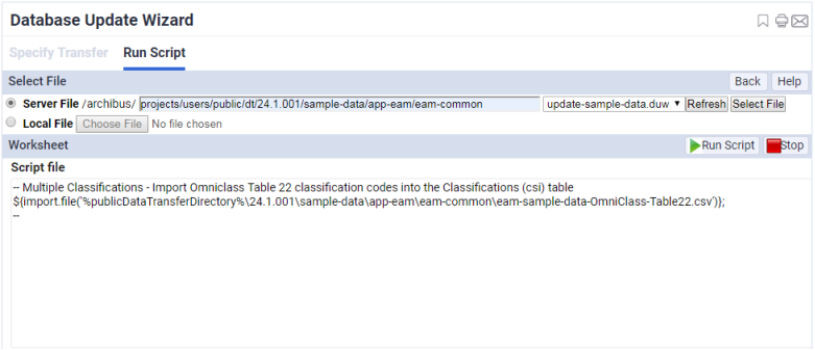
Select Run Script, then click Next.
The Run Script tab of the Database Update Wizard opens.
-
Select Server File, and paste the following path to the right of /archibus/:
projects/users/public/dt/24.1.001/sample-data/app-eam/eam-common
-
Click Refresh, then select the following script file in the drop-down list:
update-sample-data.duw
-
Click Select File.
Selected script file appears under Worksheet:
-
Click Run Script on the right.
Wait until Messages log reports successful execution.
- Return to the Define Classifications view to verify that OmniClass Table 22 appears at the Top Level in the left pane.
See also
Classifications and Classification Standards: Overview
Create Classification Standards and Classifications
View and Compare Classifications
Importing and Exporting Data: Overview
Data Transfer Overview
Importing Data Using Data Transfer
Exporting Data Using Data Transfer
Exporting Data to Excel
Database Update Wizard: Overview
| Copyright © 1984-2019, ARCHIBUS, Inc. All rights reserved.
|