- The system displays a pop-up window with a form to set up
your question.
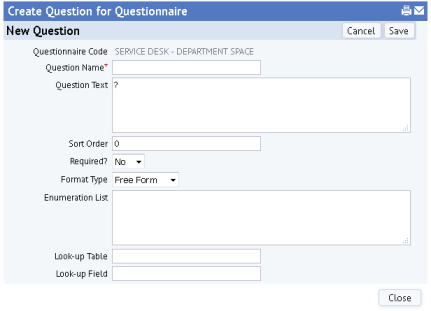
- Enter the Question Name to uniquely identify this question to the system.
- Enter the Question text as you want it to appear to the users.
- Specify the order in which questions appear to the user by setting Sort Order. The system will place the question with the lower value first, and the question with the highest value last.
- If it is required that the user complete this question, set Required? to Yes. The user will not be able to continue with the form until the question is completed.
- Define the type of question you want to create by completing Format Type. Choose one of the following:
- Enumerated -- presents the requestor with a list of values from which to choose. Separate the response values with semi-colons, such as follows: "0;No;1;Yes". Each pair defines a selectable value for the end user.
- Look Up -- presents a Select Values dialog so that the requestor can choose values from the table and field specified in the Look-Up Table and Look-Up Field options.
- Free Form -- presents a blank field so that the requestor can type in a free-form value. In the Free-Form Width field, enter the maximum length of the value that the requestor can enter.
- Date -- presents a date field for the user to complete
- Number -- Presents a field for user to enter a number. User can complete the question with numbers that include decimals.
- Integer -- Presents a field for user to enter a number. User will complete the field with whole numbers.
- Click Save to save the question in the questionnaire.
- Repeat this process to add more questions and questionnaires.
Note: The first value is the database value, that is, how the selection will be stored in the database. Second value is the display value as it is shown to the requestor in the drop-down box.