As a department manager, you need to ensure that when a new employee or contractor arrives on their first day on the job that there is a designated space for them to work at. Similarly, if your department downsizes, you want to release space from your department and make it available to other departments. This is particularly important if your company charges each department for the space that is allocated to them; you do not want to be charged for space that you are not using.
With the Request Department Space task, a department manager can:
You claim additional space and release space you are no longer using by indicating on a floor plan drawing the exact rooms that you want to affect. You can also choose rooms from a room list.
You can enter the exact date that you wish to claim or release the space so that you are not charged for its use while you are not using it. For example, if you are planning space for a new employee who will arrive in three weeks, you can enter the required future date as part of the request. Although you can claim this space now, the system will not charge you for this space until the new employee actually occupies it in three weeks.
The system manages departmental space requests through Archibus service requests, specifically the Service Desk- Department Space type of service request. How the system processes your space request depends upon the Service Level Agreement (SLA) governing the Service Desk- Department Space request type. An SLA is defined by your facility manager or service desk manager determines such factors as whether a space request needs to be routed for approval, or if email notifications must be issued.
Note that if you are signed in as a division manager and do not have a value for the Department Code field, the system shows rooms for your division.
Select the Space Planning & Management / Space Inventory & Performance / Department Manager / Request Department Space task.
The system presents the Basic tab and fills in your name as the requestor and your telephone number (which you can edit). The system displays basic information about the SLA governing the Service Desk- Department Space type of service request, which is not editable.
Press Next to continue to the Detailed Information tab.
Note that if you have already made a request today, the system notifies you that a similar request exists. Choose Continue at the top of the form and you can continue with entering this new request.
On the Detailed Information tab, you:
Press Next to continue to the Assignments tab.
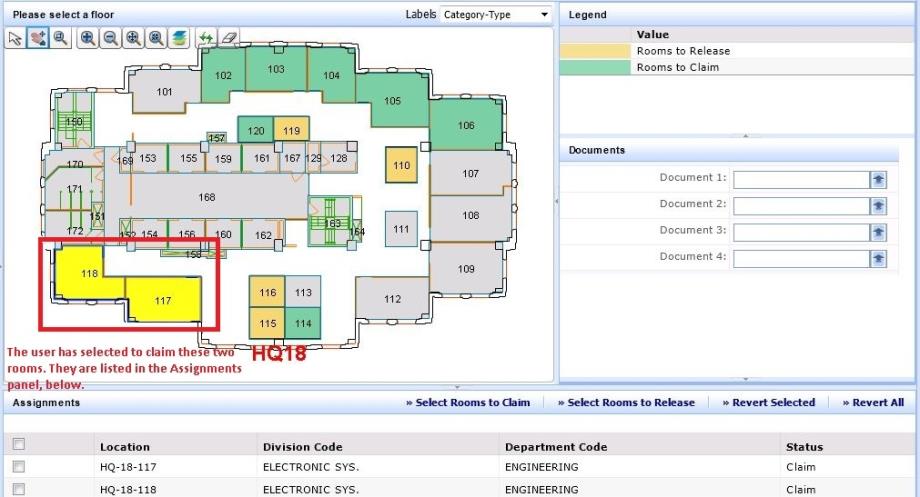
The system moves you to the Assignments tab so that you can specify the rooms to claim and release. Note that when you choose a room to claim or release, 100 percent of the space in that room is assigned or released from you.
The system displays the floor plan with its room numbers. You can optionally display additional labels by choosing the desired option from the Labels button above the floor plan drawing.
Note: How the system allocates released space is determined by the AssignUnallocatedSpace application parameter. See Configure Space Application Parameters.
Note: If you claim or release space and then change your mind, note that the drawing cannot redisplay the room's highlight in its original color until you save your changes. For example, if you click on a room highlighted in green to claim it, and then change your mind, the system cannot redisplay the room in green until you save your changes.
Note: If a space was assigned to a department by other means than this task, then it is possible to have a room which has a room category that deems it as non-occupiable, but yet the space is still assigned to a department. In this situation, a department manager cannot use this task to release this room from the department. Instead, you must directly edit the data.
Once you process your request, the system processes according it to the terms of the service level agreement governing the request.
| Copyright © 1984-2020, Archibus, Inc. All rights reserved. |