Archibus Cloud / Foundations / Space and Moves / Space Console
Archibus Cloud / Space / Space Manager / Space Console
Space / Space Inventory / Space Manager / Space Console (non-transactional)
Space / Occupancy / Manager / Space Console (non-transactional)
Change the Layers of the Displayed Floor Plans
The Space Console displays the floor plan with a default set of layers visible. Use the Layers command to change the layer selection, such as displaying labeling text, wall boundaries, or doors.
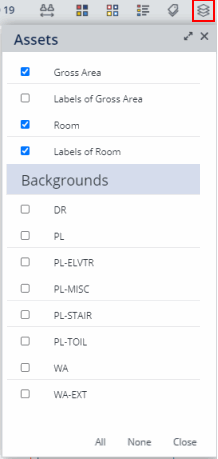
The exact set of layers listed on the Layers form depends upon how the CAD manager published the published the SVG enterprise graphics file Typically, most companies publish similar sets of layers for their floor plans. However, it is possible that each floor plan can have a distinct set of layers published as enterprise graphics; therefore, the layers listed in the Layers form can vary from floor plan to floor plan.
On the form. click a layer's check box to toggle the layer between displaying and hiding. Turning on too many additional layers might make your drawing too crowded and hard to work with. For your convenience, the form groups together asset-related drawing layers and background layers and enables you to show or hide all layers at once.
Once you specify a set of layers, this set persists to other floor plans that you open in the current session. For example, suppose you make the selection depicted in the below image on BOSMED-01. If you now open BOSMED-02, the command will activate these layers, if available (that is, if they are present in the enterprise graphics file). This behavior is for a selection of single drawings only; that is, this behavior is in effect when you click on the record in the Floors panel to switch drawings, or you toggle between checking and unchecking a drawing in the Floors panel.
If you want to return to the default set of layers, you clear the browser cache to see the default layers (if you specified a value in the AbSpaceRoomInventoryBAR-SpaceConsoleDefaultLayers application parameter) or published layers (if the parameter is left blank).
Controlling the Default Layers
If you wish, you can define a set of layers specifically for the Space Console by setting the AbSpaceRoomInventoryBAR-SpaceConsoleDefaultLayers application parameter using the System / Archibus Administrator - Application Configuration / Configure Application Parameters task.
Set this parameter and when you load floor plans in the Space Console, they automatically display the layers specified by the parameter. Likewise, the settings on the Space Console's Layers form reflect this layer set.
The default setting for this parameter is: rm-assets;rm-labels;gros-assets. Each layer is separated by a semi-colon.
If you do not set this parameter, the default published layers will be on, with background layers off.
This option controls the layers displayed by default. You can still use the Layers command to adjust the layers as needed.