Using Archibus Help
This topic has the following sections:
- Overview
- Getting Started Paths
- Accessing Archibus Help
- Displaying the Navigation Pane
- Moving to Linked Topics
- View Topics Covering both Archibus SaaS and Full Software
- Paging through the Table of Contents
- Searching for Topics
- Bookmarking Frequently-Used Topics
- Accessing Context-Sensitive Help
- Online and Offline Access
- System Management Help
- Localized Archibus User Help
- Usage Notes
Overview
Archibus Help covers both Archibus SaaS and Archibus full software deployments and includes content for:
- getting started paths
- Archibus Foundations
- using Web Central
- using Smart Client
- using the Smart Client Extension for AutoCAD or Revit
- Archibus SaaS modules, such as Space
- Archibus applications such as Space Inventory, Corrective Maintenance, Condition Assessment, and so on
- Archibus mobile apps
Note: Topics for advanced users, such as topics on configuration, security, customization, and installation, are found in Archibus System Management Help.
Getting Started Paths for Archibus Foundations, Archibus SaaS, and Archibus full software
Archibus Help covers all deployments:
Getting Started Path topics, located near the top of the Contents, help you get started with Archibus by directing you to the videos and help topics that are targeted to your deployment and your role within the company: CAD user, facility manager, self-service user, and so on.
Use the Getting Started topics for an overview of tasks and tips for getting started with your own data.
For a list of all videos, see Index of Videos.
Accessing Archibus Help
There are several ways to access Archibus Help:
| In this Archibus program or feature ... | ... access Archibus Help with |
|---|---|
| Web Central | User Help command (the Question Mark icon in the top right corner) |
| Smart Client | Help command, located on the Help ribbon |
| Smart Client Extensions for Revit and CAD | Archibus Help command, located on the Info ribbon |
| the Navigator in Smart Client and Smart Client CAD programs | While in a process or role on the Navigator, right-click to access the Help command, which will present a topic specific to the current process or role. See Context-sensitive help later in this topic. |
| URL |
Archibus Help resides at this URL: https://www.archibus.net/ai/abizfiles/v26.1_help/archibus_help/user_en/archibus.htm. You can bookmark this URL and save it as a favorite. |
Once you access the online help system, you can use its Search, Table of Contents, and Glossary features to load specific online help topics.
Note: When using the Archibus help systems, you might encounter minor browser-specific behaviors. For information, see Archibus Revision History / Known Issues.
Displaying the Navigation Pane
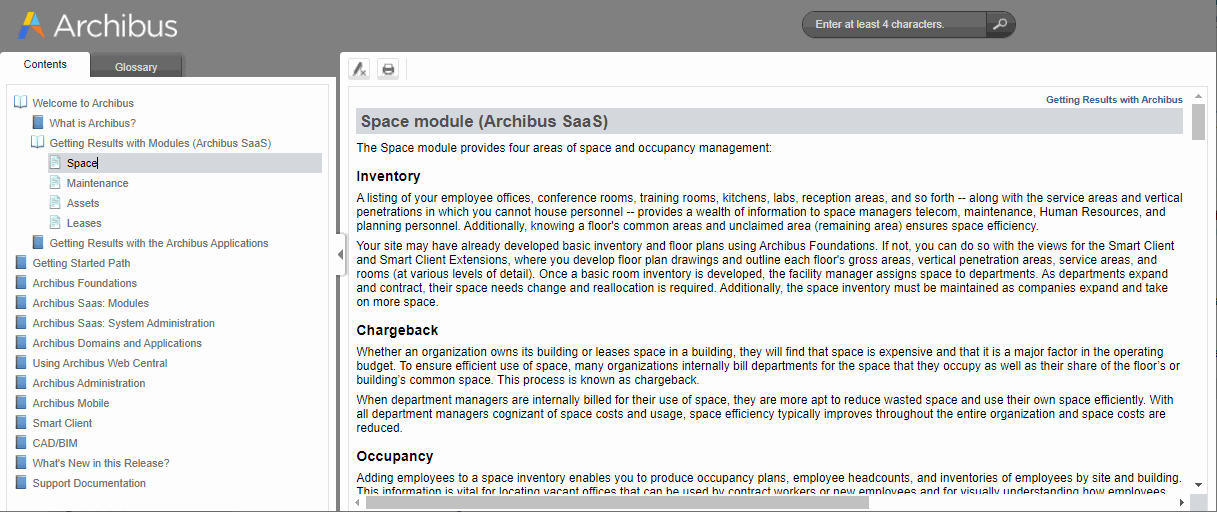
As shown in the image at the top of this topic, Archibus Help has a content pane (on the right) for displaying topics and search result lists and a navigation pane (on the left) with these tools:
- Contents: A hierarchical outline of the Help system's material.
- Glossary: An alphabetical list of glossary terms for all Archibus programs and business applications. Select a term to see its definition in the right pane.
To hide the navigation pane, click on the triangle-shaped button on the right border of the navigation pane.
To resize the navigation pane, hover over the navigation pane's right border and drag.
Moving to Linked Topics
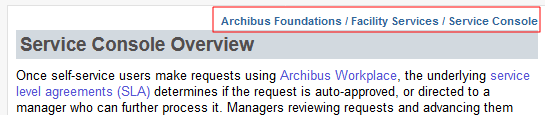
A topic may contain links to other topics in the help system, as indicated by colored text. For example, in the below image of the Service Console Overview topic, "Archibus Workplace" is in blue text because it is a link to another topic.
Click on the colored text, and the new topic will either replace the current topic in the browser, or, if it is a glossary word, it will display in a pop-up topic. Click outside of the popup window to close the glossary pop-up window.
Once you access topics from the Table of Contents or by searching, note that the topics may link to topics outside of the original books on the Table of Contents. For example, they may link to topics on the Archibus programs, such as using Web Central's Data Transfer features. The blue text at the top of a topic indicates the component or view (along with its navigation path) to which the topic pertains.
View Topics Covering Both Archibus SaaS and Full Software
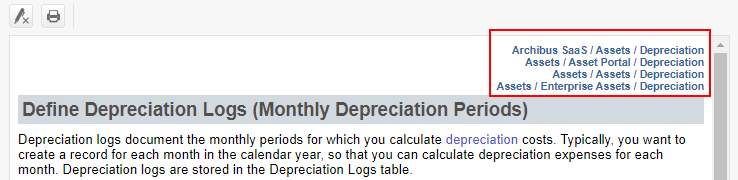
Archibus SaaS and Archibus full software deployments use many of the same views; in these cases, the help system has one topic for the view and notes any deployment-based differences. These topics list navigation paths for both Archibus SaaS tasks and tasks of the Archibus full software in the upper right corner. If "Archibus SaaS" is not specified in the view navigation path, typically the topic pertains to a view that is available only in the Archibus full software. For example, the blue text for the below topic indicates that the view is available in the Assets module (SaaS), as well as three applications found in the full Archibus software. Thus, users of both Archibus SaaS and the full software will use this topic to understand the view.
Consulting the blue text at the top of a topic is particularly important when you access the topic through searching. For example, an Archibus SaaS user might enter a general search query and receive a list of topics that cover both Archibus SaaS and the full software, as well as topics that pertain only to the full software offering. Checking the blue text at the top of a topic will clarify if a topic that you access through searching applies to your site's Archibus deployment.
Paging through the Table of Contents
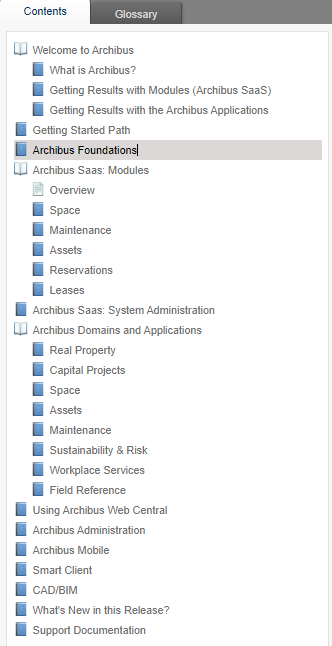
The Table of Contents organizes the help topics by Archibus Foundations, Archibus SaaS modules, and Archibus full software, and also includes books for each Archibus program (mobile, Web Central, Smart Client, Extensions for CAD and Revit). On the Contents tab, you drill down through a series of organizing "books" to access specific topics.
To become familiar with an application, module, or program, you can follow the structure of the Table of Contents, selecting the "book" icons to drill down through the content and selecting the "page" icons to load topics.
Searching for Topics
Rather than drill down through the Table of Contents, you might wish to search for topics.
- Enter a phrase or word in the Search box, located in the upper right corner. In the image above, the user has searched on "service console." See below notes for tips on making your entries.
In the content pane, the system presents a list of all topics containing your search word or words. To help you determine if this topic will be helpful to you, the search results present the first few lines of text of each topic.
- Scan the search results and click on a topic that is of interest.
The system displays this topic in the content pane and highlights each occurrence of the search word or words.
- For easier reading, you can shut off the highlight using the "Remove highlight" button, located at the top of the content pane.
- The blue text in the upper right corner of a topic describes the application, module, or program to which the topic pertains, and can serve to inform you if this topic is what you require. For example, if you are a user of the full software and through searching you access a topic whose blue text labels it as Archibus Foundations, you may wish to return to the search results. An image above shows the Service Console help topic, which pertains only to Archibus Foundations, as indicated by the blue text.
- If this topic does not meet your needs, you can return to the list of search results using your Web browser's "Back" button.
You can now choose another topic to load.
Note these search behaviors:
- Searches are not case-sensitive. Search results will include topics that contain both upper and lower case instances of the search term you enter. However, matches that use the case you entered will most likely be shown higher in the results.
- Search includes terms with variant endings. Search results include matches that have different endings than your entry. For example, a search for the term 'lease' will include matches for 'leases' and 'leased.' A search for the word 'local' will include matches for 'locales' and 'localization'. The highlight in the topics will be on the part of the word that you entered in the search box.
-
Partial search is supported for System Management Help only.Partial search finds matches that contain your entry anywhere - at the beginning, middle, or end of a term. For example, if you enter "stoplight", topics that contain the parameter "useStoplightColor", and the phrase "stoplightColor value" would both be included, as well as topics that contain the word "stoplight" on its own. For the System Management Help on archibus.net, you must enter at least four characters to perform a partial search. For all Help that is locally installed, and for the User Help on archibus.net, partial search is not enabled.
Note: For the Help systems that do not support partial search, be aware that if a topic matches your search term and also happens to have a word that contains your search term anywhere within it, the search highlights both the search term and any word that is a partial match. For example, if you search for the word 'dash' and a topic has the word 'dash' and also the word 'dashboard', "dash" will be highlighted as "dash" and where it occurs within "dashboard". However, note that the search is finding these partial matches only in topics that also include the exact term you entered.
- Phrase search is supported. To search on a phrase such as "work request," you must enclose your phrase in quotation marks when entering it in the search box. Search results will include exact matches and variants. Variants are matches that use a different case or ending than the entry. For example, entering "work request" will produce matches such as "Work Requests" and "Work Request."
- When using phrase search, lower-ranking topics might contain similar matches, such matching "work request as the words you entered with a hyphen. Note, however, that these similar matches are not highlighted in the topic.
- Wild card search is not supported.
- Non-words can be included in search. You can include content that is not regular letters and numbers in the search box. For example, you can enter angle brackets or underscores, and the search will match these entries to topics that contain them. However, except for the Boolean operators listed above, most punctuation is ignored. Although, in general, non-words can be included in search terms, the dash is not recognized.
- Boolean operators are supported. The following Boolean operators are supported:
Operator Description Example And And designates that matches must include both terms. When separating terms with a blank space, the AND is always inferred. Additionally, to use this operator, you could type any of the following:
- the word 'and' (not case-sensitive and no quotes needed)
- the plus sign (+)
- the ampersand (&)
between two or more terms.
Using the operator And is especially useful when you want matches that include both terms, but the terms are not necessarily part of a phrase.
For example, enter lease and chargeback to find topics that include and highlight the terms leases and chargeback, but are not limited to the term "lease chargeback". Or To find topics that include either of the terms you enter, type either:
- the word Or (not case sensitive) or
- the pipe symbol (|)
This broadens the search results.
For example, enter
localize or translate
to see topics that contain either of these words.
^ Search for topics that contain one term, but not the other. Use the ^ to separate the terms. The first term is the included term; the term after the ^ is the excluded term.
Note: The ^ excludes the term and its variants - that is, the term you enter with different endings.
For example, enter:
"conference calls" ^ Revision
to search for topics on conference calls, but to exclude the Revision History topics.
() Combine terms. Use parentheses ( ) to combine Boolean terms. Type the parentheses around the combined terms. For example, type
"smart client" and (localize or translate)
to see topics that use either of the terms localize or translate, and that also include the phrase Smart Client.
Bookmarking Frequently-Used Topics
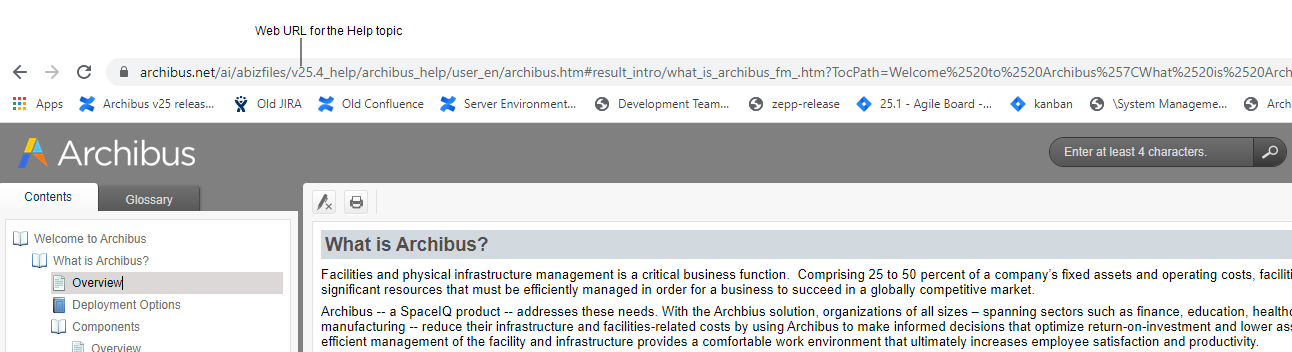
You may wish to save a topic that your frequently access so that you can easily return to it without drilling through the Table of Contents or searching for it again. The URL for the topic displays in your Web browser, as shown in the below image. Use your Web browser's Bookmark or Favorites tool to save a this topic in the same manner that you would save any favorite web page.
Tip: When you access a topic by searching for it or selecting it on the Table of Contents, the search string and the Table of Contents path are included in the URL. It is not necessary to save the search string and Table of Contents components of the URL. If you want to work with a shorter URL -- for example. in order to email it to a colleague -- omit from your text selection the characters after ".htm" portion of the URL.
Accessing Context-Sensitive Help from the Navigator
Rather than page through the Contents, you might want to access online help that is specific to your current work. You can access online help that is specific to the selected role or process listed on the Navigator.
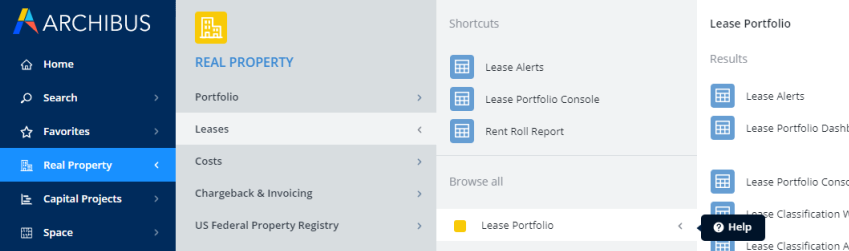
- In the Smart Client or Web Central, load the Navigator.
- In the Navigator, drill down to the Role or Process level.
- Right-click while on the process or role, and choose Help from the pop-up menu.
- A help topic that overviews this process or role opens in its own browser session
- The Table of Contents pane displays this topic's position in the hierarchy.
- Follow the Table of Contents hierarchy to access other topics detailing how to work with this process or role.
Note: If you are using a non-English locale, you will receive a help topic from the English version of Archibus Help when right-clicking on a Navigator entry. Since the localized versions of Archibus Help do not contain the help topics covering application and module details, the right-click Help command presents the appropriate topic in the English version of Archibus Help.
Offline and Online Access
Archibus Help and Archibus System Management Help are stored on the Archibus web site at these locations:
| Archibus Help | http://www.archibus.net/ai/abizfiles/v26.1_help/archibus_help/user_en/archibus.htm |
| Archibus System Management Help | http://www.archibus.net/ai/abizfiles/v26.1_help/archibus_help/system/sysman.htm |
So that you can have the latest and most up-to-date information, these help systems are updated with the latest information between official product releases.
The default installation calls for the Help commands to access the help systems from the Archibus web site. However, if your site prefers to have you access a locally-installed help systems, your system administrator can locally install the help systems. See Installation / Installing the Help Systems Locally on the Contents of System Management Help.
If your Smart Client programs are part of a Smart Client-only deployment, you will access the online help systems either on archibus.net or locally, depending on how your system administrator has deployed them. If you wish to use the latest help, as stored on archibus.net, you can copy the above URLs to your web browser and save them as favorites.
Archibus System Management Help
Topics for advanced users, such as topics on configuration, security, customization, and installation, are found in Archibus System Management Help.
Archibus System Management Help has the same interface as described above. There are a few ways to load Archibus System Management Help:
- Click this link: https://www.archibus.net/ai/abizfiles/v26.1_help/archibus_help/system/sysman.htm. You may want to bookmark it for easy access.
- Start Archibus Help, and in the Contents pane go to Getting Started Path / Archibus (Full Software) / System Manager. Choose the links on this topic to access System Management Help.
- Start Archibus Help, and in the Contents pane go to Getting Started Path / Archibus Foundations / Cloud Administrator. Choose the "Edit Home Pages" links on this topic to move to System Management Help. Once in System Management Help, use the search and Contents to access any topic.
Localized Archibus User Help
Archibus User Help is also offered in French, Italian, German, and Spanish. If you are using a localized version of Archibus (that is, you have set the Locale option in the User Profile to a non-English locale), running the Help command from Web Central, Smart Client, or the Smart Client Extensions for CAD and Revit opens the corresponding localized version of Archibus Help.
Content
The localized versions of Archibus Help focus on a select set of overview topics, as well as the "What's New in this Release" material; the localized help systems do not offer all the content found in the English version of Archibus Help.
With Archibus following a frequent release cadence, the focused localized help systems enable Archibus to maintain the content and produce the help systems in a timely manner.
Readers requiring more detail than available in the localized help can:
- consult the English Archibus Help
- consult the V24.1 localized help, which has many translated topics, including topics covering Smart Client, Smart Client Extension for CAD, Web Central commands, and application overview material. In this case, readers should be aware that the V.24.1 topics may not reflect current operation.
Archibus System Management Help is available in English only.
URLs
The URLs for the localized versions of Archibus Help follow the same format as the English online help, with the "user_xx" portion of the URL representing the locale. For example, the URL for a French version of Archibus Help is http://www.archibus.net/ai/abizfiles/v26.1_help/archibus_help/user_fr/archibus.htm. The language suffixes are:
- user_de (German)
- user_en (English)
- user_es (Spanish)
- user_fr (French)
- user_it (Italian)
Usage Notes
- Google Chrome. Navigation buttons. If you call Archibus Help from Web Central using the Help command or from the Navigator, the Back and Forward Chrome navigation buttons do not display; thus, as you jump to various topics, you cannot use the Back button to go to a previously-viewed topic. As a work-around, you can use the right-click Back and Forward commands. Or, instead of accessing the Help system from Web Central, create a bookmark for the help system's URL and use this bookmark to access Archibus Help.
- Trouble accessing topics from Contents or Search. The online help systems located on archibus.net (https://www.archibus.net/ai/abizfiles/v26.1_help/archibus_help/user_en/archibus.htm and https://www.archibus.net/ai/abizfiles/v26.1_help/archibus_help/system/sysman.htm) are continually updated with late-breaking additions, clarifications, and fixes. After Archibus uploads a new version of the help systems, users might have trouble drilling down into the Table of Contents or accessing topics from the search results. Deleting the browser's cached information resolves this issue.
- When running Smart Client or the Smart Client Extensions on Archibus SaaS, you may find that accessing the Help command loads Archibus Help but does not display a topic. Refreshing your browser will display the topic
- Running Help in browsers with debug settings turned on.You may encounter error messages when running Archibus Help and System Management Help if your browser is set to debug mode.