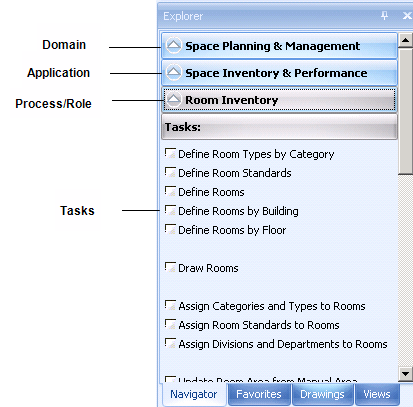
To organize the project data, ARCHIBUS provides the Process Navigator which is organized into:
Similarly, processes for remote managers are separated from data development processes. The result is that the applications remain integrated, but are still accessible from within Windows, within your CAD program, or on the Web.
The Process Navigator is available in:
The above image shows the Smart Client Process Navigator.
The Process Navigator in Web Central has the same components (domains, applications, processes. roles, and tasks), but uses a slightly different display:
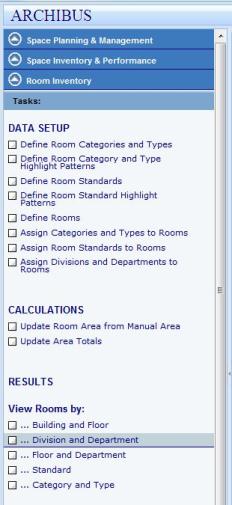
The Process Navigator provides a structure for developing and presenting data in an organized, easy-to-follow manner, based on your role within the company. Typically a business process owner or ARCHIBUS program manager will configure the Process Navigator so that it presents only tasks that are appropriate to your role.
Your Process Navigator may look different than that of your co-workers, since you may have a different role and therefore been assigned different processes and tasks.
Using the Process Navigator to access and develop data helps you focus on just the tasks required for your job or role, providing an efficient environment for data development and management.
Note that the specific tasks listed on the Process Navigator can vary between ARCHIBUS tools. For example, the Smart Client Process Navigator may not display all reports that are available from Wed Central. Similarly, the Smart Client Process Navigator may include tasks for launching CAD, which are not available in the Web Central Process Navigator.
Note: The Process Navigator in the ARCHIBUS Smart Client Extension for AutoCAD or the DWG Editor presents only tasks for the CAD specialist role, such as tasks for setting drawing layers, highlighting drawings, and generating enterprise graphic files.
To access a particular task, click on the application, the process (or role), and then the task. If you have only one application or process, the program will select it automatically for you. Clicking on a task loads the form or report you need; this is also known as a view into the data. For more information, see Loading Tasks Using the Process Navigator.
To return to a previous level of the Process Navigator, click the up arrow icon next to the current process/role, application, or domain.
Help topics are typically found at the process or role level. Right-click on the process or role and select the Help link that appears. This opens the Help topic overview for that process or role. From a process overview, you can jump to step-by-step instructions for performing a specific task. See Using the Help System.