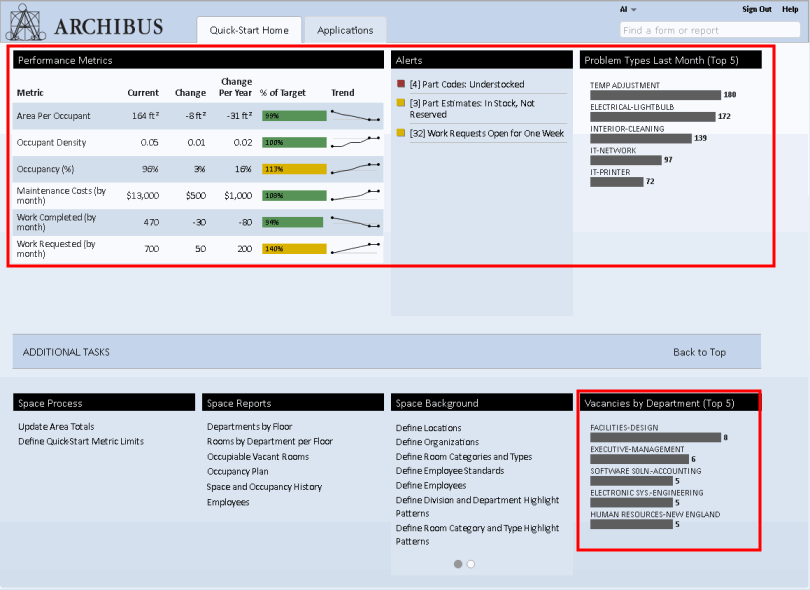
In addition to listing tasks, a navigation page can present other useful information such as alerts, "top 5" issues, scorecards, and other performance metrics. For example, the Quick-Start Home page shows statistics, alerts, and charts of top-5 types of maintenance problems and vacancies. These metrics provide key information right from your navigation page.
Metrics use the following stoplight colors to summarize your values. For each metric, the system administrator establishes the value ranges for each of the levels:
For example, with a glance at the above navigation page, you immediately know that Area per Occupant and Maintenance Costs are on target, but your occupancy rate is at the warning level and you have reached the warning level for the number of open work requests. Your system administrator might configure ARCHIBUS so that it sends an email notification to you when your threshold levels for warnings and critical issues.
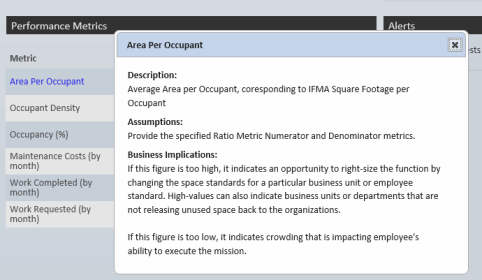
If you need details about a particular metric, click on the metric name and the system presents important information about how the metric and its significance.
If you click on the colored bar for a performance metric, the system presents a pop-up menu with selections for more details.
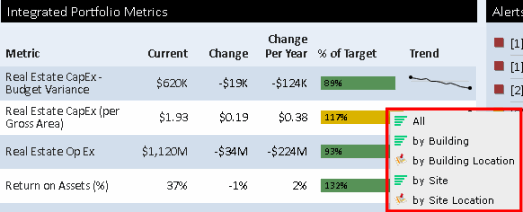
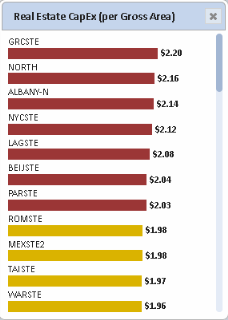
For example, on the Portfolio Manager Home page, choose "by Site" menu option for the Real Estate Capital Expense metric, and you receive the below pop-up detailing the Real Estate CapEx per Gross Area values for each site.
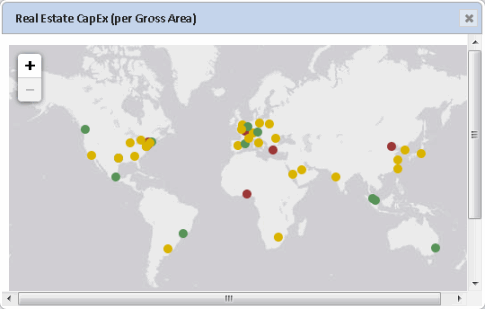
If a building or site has been geo-coded, you can see the location of these items on a map. From the menu, choose a "by Location" option, such as "by Site Location" and the system presents in a pop-up window a map with markers indicating the location of the sites contributing to the metric. The map markers use the same stop-light colors so that you can easily locate the on target, warning, and critical sites. You can zoom the map and hover over a marker for the site or building name.
For other metrics such as those in a scorecard, you can click on the item to launch a report or view that provides details about the data contributing to the metric or presents a console for solving the problem.
| Copyright © 1984-2015, ARCHIBUS, Inc. All rights reserved. |