
If your ARCHIBUS Administrator has set up your ARCHIBUS account to use page navigation, you will access ARCHIBUS views and other handy information from a navigation page that looks similar to the below image. On a navigation page, tasks are organized into panels (groupings under each title, such as Space, Building Operations, Favorites, and Help in the below image). Because you can vertically scroll the navigation page and horizontally scroll the individual panels, you can access all of your tasks from a single spot without having to drill down to tasks as you do with the Process Navigator.
When you sign in to ARCHIBUS, ARCHIBUS loads the appropriate navigation page based on your account.
For the various roles and users in an organization, an ARCHIBUS administrator can design navigation pages that offer just the tasks and information that each set of users needs. For example, the above Quick-Start Home navigation page is designed for users to get up and running with key Space and Building Operations tasks. Other navigation pages might focus on mobile users, self-service users, or facility managers who need access to all tasks.
Navigation pages offer several features. This topic has the following sections to describe these features.
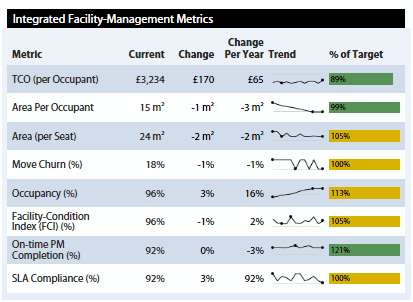
Navigation pages often list important metrics and alerts so that you can quickly determine the state of your issues and critical issues. In the above image, the performance metrics are listed in the second row. For information, see Performance Metrics.
You may want to share the performance metrics displayed on a navigation page with others in your organization. Because the performance metrics are summary information, they are often appropriate for PowerPoint presentations.
Select the Create Presentation action on the drop-down menu, and ARCHIBUS outputs the panels containing metrics to a PowerPoint file.
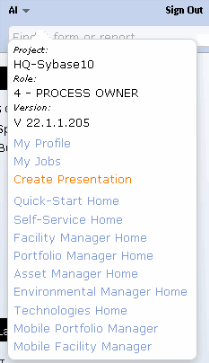
The system creates one PowerPoint slide for:
ARCHIBUS outputs the information in the above order. Once ARCHIBUS generates the PowerPoint document, you can reorder the slides, delete slides that you do not want to include, add titles and callouts, combine the images onto fewer pages, and so on.
For more information, see Creating a PowerPoint Presentation from your ARCHIBUS Data.
Navigation pages are also referred to as home pages because they are the base from which you work with ARCHIBUS. Depending on your role, you will have one or multiple navigation pages. For roles that have only one navigation page, the sole navigation page is the home page.
For roles with multiple navigation pages, the page that loads by default is known as the home page. If you are signed in with a role that has multiple navigation pages, you can toggle between the pages using the drop-down menu beneath your sign-in name.
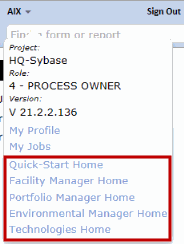
Note: Depending on your ARCHIBUS account, you will have access to either the ARCHIBUS navigation pages, the Dashboard, or the Process Navigator. This is controlled by the Navigation option of Web Central's My Profile command.
Many entries on the navigation page are tasks that load ARCHIBUS views. Click on any task to load the ARCHIBUS view or report.
Once you have selected a task, ARCHIBUS presents related tasks on the Tasks drop-down menu. You can select one of these tasks without having to return to the navigation page. The Tasks drop-down menu offers the same tasks as found in the panel of your current task. For example, the below image shows the tasks of the Space panel.
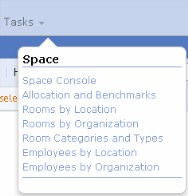
Should you want to return to a navigation page, just click the appropriate tab. For example, if you select a task from the Real Estate Portfolio Management panel of the Applications tab, you would click the Applications tab to return to the Applications page.
You can also use your Web browser's back and forward buttons to return to previous views or navigation pages that you have used.
Depending on your role, you may have access to the Applications tab, from which you can access any of your assigned processes or tasks. Each panel presents the applications of an ARCHIBUS domain. If you are familiar with the Process Navigator, you will find that the Applications page follows a similar format of organizing applications by domain, and within each application, grouping tasks by process or role.
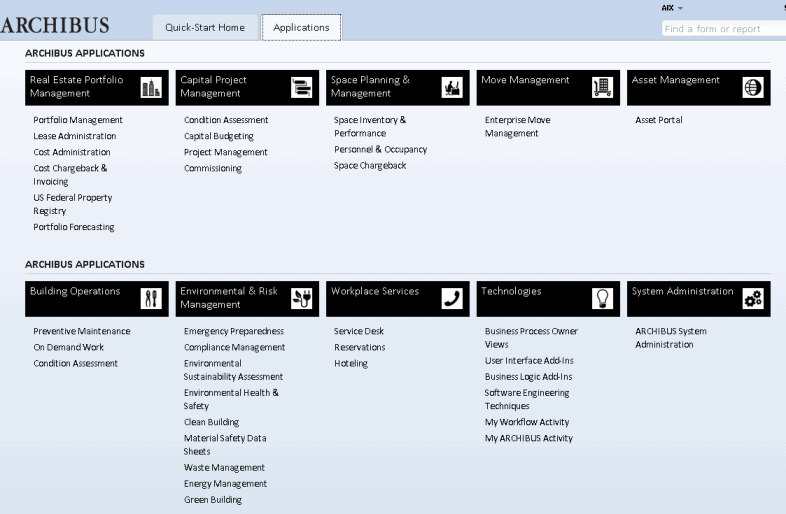
Click on an application, such as Portfolio Management (located in the Real Estate Portfolio domain in the top left corner), and you receive panels holding the application's processes and roles, such as the following processes for the Portfolio Management application. Select an entry from a process panel to load the task.
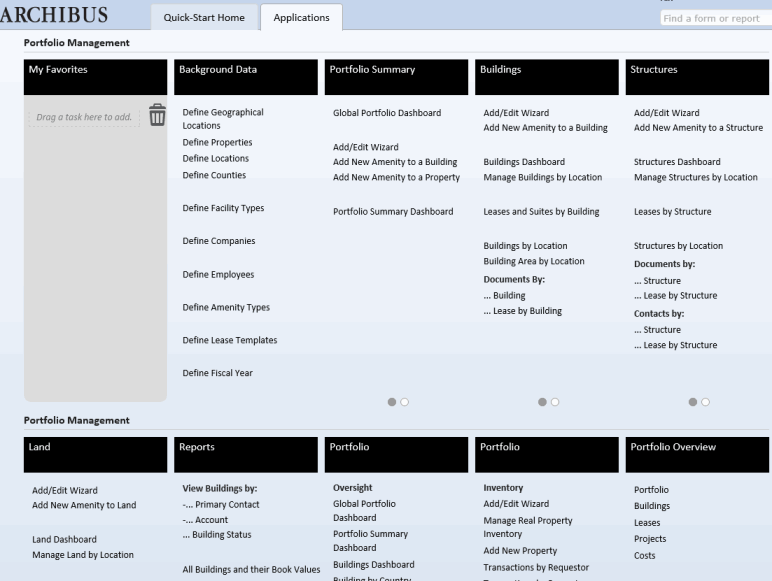
Your navigation page may include a My Favorites panel.
To add a commonly-used task to the list, drag-and-drop it to the "Drag any item here" target. The program will add it to your list of favorites. The list is personalized to you: the task will not appear on another user's list of favorites.
To remove a task from the list, drag it off the screen.
The My Favorites panel also appears on each application's page within the Applications tab. You can add any task from the application to the My Favorites panel by dragging it onto the "Drag a task here to add" target. That task will appear on your My Favorites list on your home page.
Page Navigation: Refresh. In some rare instances, clicking on a task will not actually load it. In this case, press Refresh on the browser, and you will be able to continue.
| Copyright © 1984-2015, ARCHIBUS, Inc. All rights reserved. |