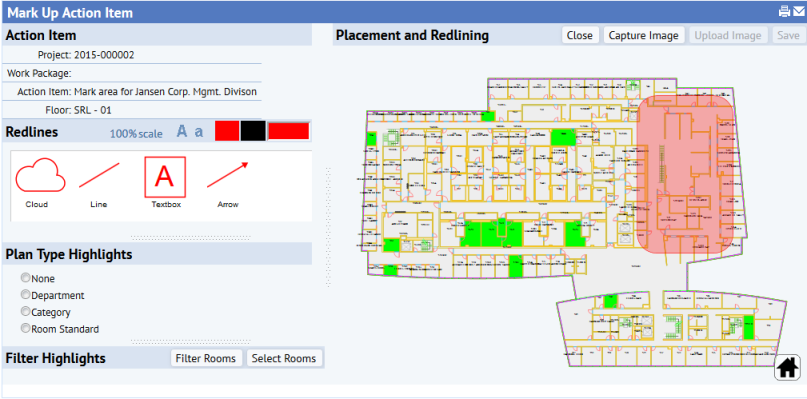
Facility managers want to be able to provide detailed information to other stakeholders about changes, maintenance, repairs, and so on that will be made in order to accommodate space changes. These other stakeholders can include managers of departments that will be the new occupants, maintenance and HVAC supervisors, building operations managers, and so on.
To accommodate this need, Space & Portfolio Planning Console provides many options to markup floor plans to share information about proposed work or changes to floor space.
This example continues with Example 5: Find Space for an Acquired Company and shows how to highlight the scenario's information so that you can share it with others.
For more information on the markup tools discussed in this topic, see Marking Up Images and Floor Plans.
In Example 5, Step 5 you marked up SRL-01 to indicate the location to which Jansen's CORPORATE MANAGEMENT department will move.
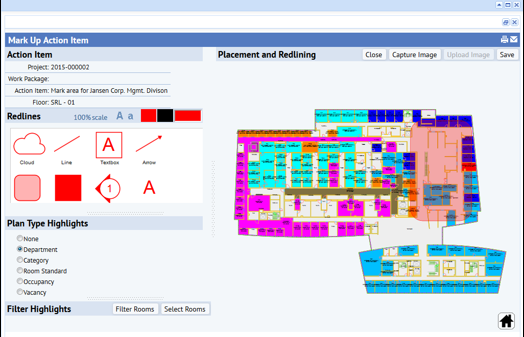
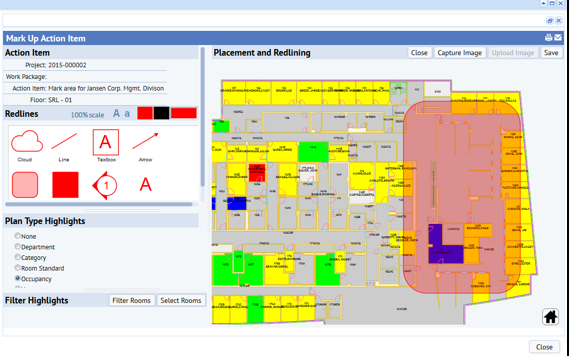
Another useful capability is viewing the floor plan by a variety of plan type highlights, such as Department, Room Category, Room Standard, Occupancy, or Vacancy. The images below show examples of two highlights for the same floor: by Department, and by Occupancy. The highlight capability is useful to identify nearby departments that might be affected by the change. For example, the highlight clearly identifies which departments or employees next to the proposed floor renovations need to be alerted to the renovation and be provided with alternate routes and safety instructions.
Example 5: Step 9, called for creating work packages to convert four storage rooms to offices. You can mark up the affected rooms in the floor plan drawing.
The image below shows SRL-02 with an action item named “Renovation Project – other repairs.” Two filters have been created: “Replace Windows” and “Replace Hallway Carpets.” A text note, created with the Arrow and Textbox tools, indicates that only a two-week window is available for carpet installation.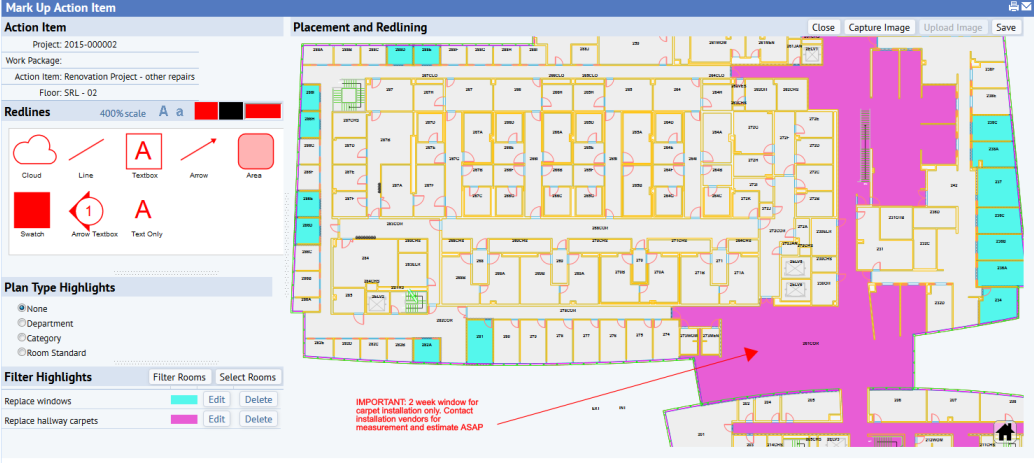
Finally, note that you can filter standard organization and space hierarchy to identify specific by occupancy or type.
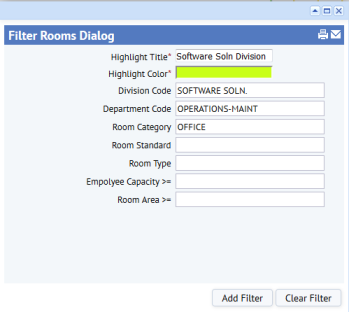
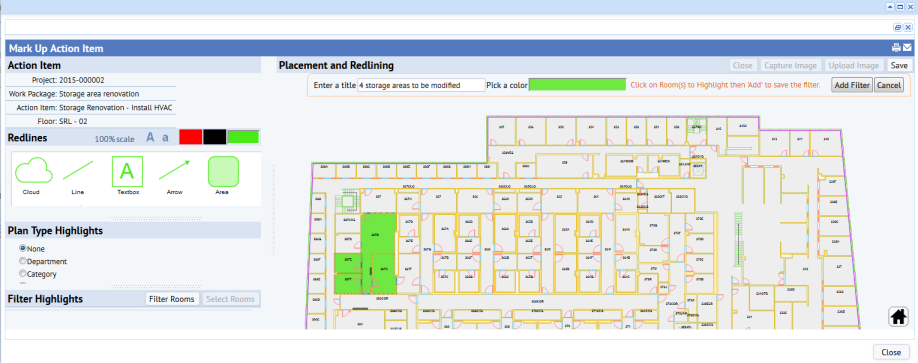
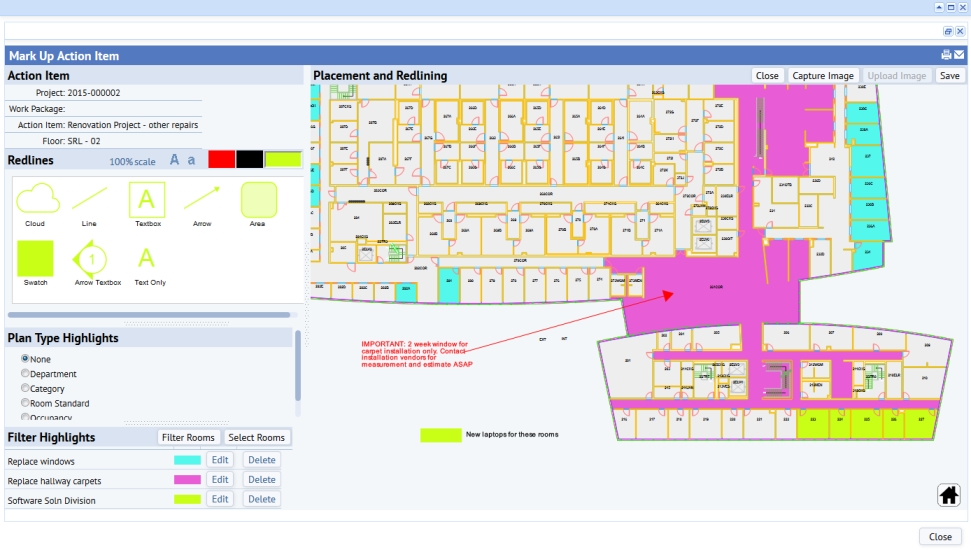
The image below shows the filter “Software Soln Division” added to the filter list using the above method. The rooms corresponding to the filter are highlighted in lime color. By dragging and dropping the swatch onto the floor plan canvas, you can create a legend to indicate that all rooms with lime color need new laptops installed. The swatch is useful for creating legends to provide additional information about rooms that cannot be captured by just room highlights. Swatches are also useful if marking up the rooms with text boxes makes the floor plan too cluttered.
After you mark up your floor plans, you will want to share the markups with others in the organization.
For example, if you are moving a department, it is helpful to share this markup with the department managers so that the managers have a general idea about where their people will be located on the floor.
You can also use markup to obtain feedback before major changes have begun.
There are a few ways to share markup:
When you click Save, the system creates a screen-scrape and saves it to the Document 4 document field of the Action Items table (the activity_log table). The system saves to the ARCHIBUS Redlines table (afm_redlines) the data that is necessary to re-create the markup and highlighting so you can edit it later on. The screen-scrape itself does not have enough information for you to later edit.
If desired, generate a Powerpoint of the Jansen Merger portfolio scenario from Exercise 5 by following these steps:
| Copyright © 1984-2016, ARCHIBUS, Inc. All rights reserved. |