Open topic with navigation
Space Planning & Management / Strategic Space Planning / Examples
Real Property & Lease Management / Advanced Portfolio Forecasting / Advanced Portfolio Forecasting / Examples
Example 2: Plan for a Growth Forecast Using Existing Space
In Example 1: Plan for a Growth Forecast and Acquire New Space, the planning exercise illustrated that by 2020, the company would outgrow its current space. To solve the problem, the space planner proposed leasing 30,000 additional square feet in a new building. The planner then added this proposed new space to the and found that with this change they could easily accommodate their projected needs.
However, taking on a new lease is expensive and is time-consuming. Perhaps the problem could be addressed by working within the existing space. A space planner may want to execute a planning exercise to have he projected headcount fits into the existing leased space by allotting less space to each employee. Recall, the previous example calculated required area based on the employee headcount and the allotted space per employee per business unit. As an alternative what-if scenario, you can develop a portfolio scenario in which you modify the per-employee space for the various business units and see if with this change the existing space can accommodate your projected forecast.
Step 1: Create a Forecast by Business Unit
First, define the projected growth for each period by developing a
Note: A forecast is a special type of , so you will see the term "space requirement" in the interface as you work through this exercise.
- Run the Space Planning & Management / Strategic Space Planning / Space Planner / Define Space Requirements task.
- Choose Add New and choose to create a Space Forecast.
- Complete the form with these values:
| Title |
5 year forecast reduced |
| Description |
5 year forecast for SRL by business unit with reduced space per employee
|
| Level of requirements |
Business unit |
| Summarize allocation |
Yes, by building and floor |
| Summarize space from |
Employee as headcount |
| Select floors |
Building SRL (all floors) |
- All business units in building SRL are now part of the space forecast data. The system moves you to the Edit Requirement tab so that you can define the forecast for each business unit.
- In the grid, select a business unit, such as Corporate, and complete the form with information about the forecast.
- Since you elected in step 3 to summarize space from employee headcount, as you complete the forecast you will be estimating the projected employee headcount for each business unit for the selected period. Since you want to compare this scenario to the original, you will want to complete each forecast period for each business unit with the same values as you did in Example 1.
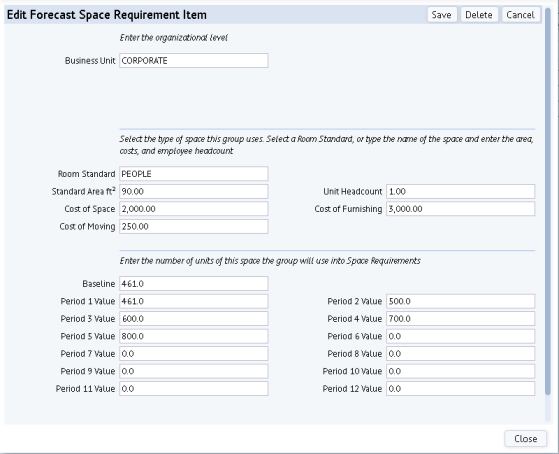
- Note the Standard Area Ft field in the below form, which the system uses to calculate the forecast required space. In the first scenario, this value was 100 square feet for each business unit. For this scenario, set this value to the following to show that you are decreasing the per-employee space for all business units, but the Corporate business unit is reduced less than the others.
- Corporate = 90
- Inspections, Manufacturing, Services = 80
- Be sure to complete Unit Headcount with 1.0 to represent that the period values reflect 1 unit; that is, Baseline refers to 461 employees (461 x 1).
- Define five forecasts for CORPORATE, using the headcounts in the below form, which are same as Example 1. Complete up to Period 5.
- Repeat for the other business units in the forecast, using the same headcounts that you did for Example 1. Recall, an average increase of 70 was used for the sample screen captures in these examples.
- When through defining the forecast requirements, save.
- Move to the Chart tab so that you can graphically see how the forecast areas change over time.
- Set the filter to show Baseline and Period 1 through Period 5.
- Notice the trend of your increased required space.
- Hover over a point on the graph to see the exact space requirement for a business unit for a particular period.
At this point, you can get a rough estimate of your required space for 2020 by hovering over each business unit for 2020, noting the required space for the business unit, and totaling this value for all 4 business units. You could then compare this amount to the space required in Example 1.
However, for a more complete picture, you can create a portfolio scenario and bring this forecast into the scenario as you did for Example 1.
Step 2: Create a Portfolio Scenario
Create the portfolio scenario in which the space forecast will be used. The is the tool that you use to work with stack plans, view gap analysis charts, work with different what-if scenarios, ans so on.
- Run the Space Planning & Management / Strategic Space Planning / Space Planner / Space & Portfolio Planning Console task.
- Choose Add and complete the Add Portfolio Scenario form.
- Enter a Portfolio Scenario of your choice that indicates that this scenario reflects the reduced space per employee.
- In Portfolio Scenario name, you can enter a more descriptive name.
- Enter Business Unit as the level since your space forecast (space requirement) from Step 1 is at the business unit level.
- Keep the default start date of today.
- The system moves you to the Stack Plan tab.
- Since the space forecast uses the SRL building and floor data, you need to add this building to the portfolio scenario. Choose "Add New/ Buildings and Floors" from Inventory and choose building SRL.
- Building SRL and its floors are now part of the portfolio scenario. The system displays a chart of the current building allocation rate.
- Display SRL's by clicking on Display in the Allocated Buildings pane. The system displays the stack plan in the lower pane. This stack plan is showing how space is currently allocated in building SRL.
Step 3: Add the Space Requirement Forecast to the Portfolio Scenario
You now need to bring the "% Year Reduced" space forecast, created above, into the portfolio scenario.
- Click the “Space Requirements: Add” button, located in the Stack Plan panel.
- The system presents the Allocate Requirements form so that you can specify the start date and name for each allocation period.
- Complete the form similar to below, being sure to bring in the "5 Year Reduced" forecast.
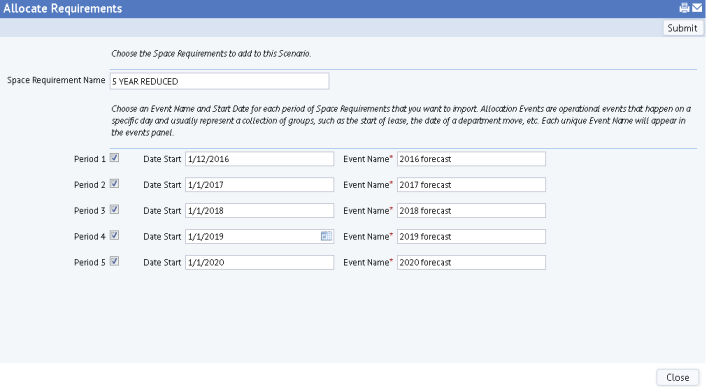
- Note that the form presents 5 periods because you defined 5 periods in the space requirement forecast. Recall, when you defined the space requirement forecast, you simply completed the Period fields with expected growth values; you did not define the time frame for these periods. With the above form, you are associating Periods with time frames and .
- Once you process the form, the system adds the events to the Events pane at the top of the Space & Portfolio Planning Console.
Step 4: Review the Forecast Space Requirements on the Stack Plan
The Events pane now lists the Events that you created in Step 3 above. In the Events pane, drill down to a forecast event, such as 2019 Forecast, and the system updates the stack plan to show the required forecast space as of this date.
- Display the if it is not already displayed by clicking "Display" in the Allocated Buildings pane.
- Select a forecast event, such as the 2020 Forecast from the Events pane.
- In the Stack pane, the system updates the stack plans for the SLR and Unallocated buildings to reflect the forecast space. The system adds the baseline allocations to the SRL stack plan, and adds the extra forecast space to the Unallocated building.
At this point, you could start to drag the allocations from the Unallocated building to the SRL building to determine if SRL can accommodate this space in the configuration that you desire. However, in this case you are interested only in seeing a broad impact of the reduction of allocated space per employee. In this case, you can move to the Gap Analysis chart to see if your current space will support the forecast.
Step 5: Review the Gap Analysis Chart
- Click on the “Gap Analysis” tab.
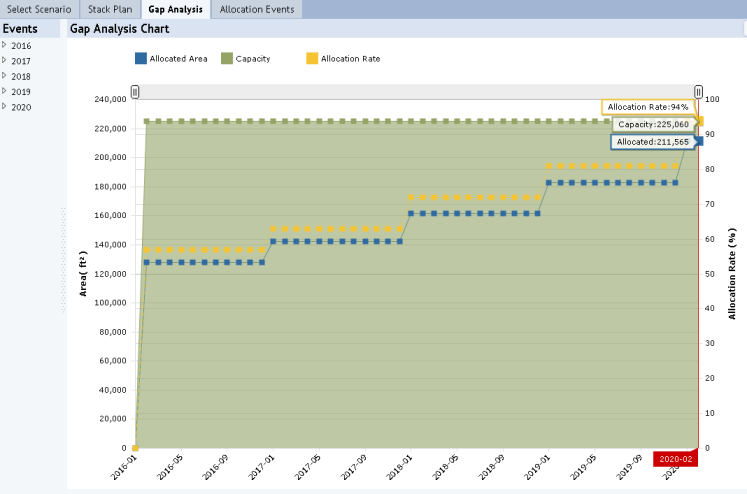
- Note the total allocated area in the scenario increases with each period with a corresponding increase in the allocation rate because capacity stays the same.
- Hover over 2020 (forecast Period 5). By reducing the amount of allocated space per employee from Example 1 but still increasing employee headcount for each business unit for each period, it is likely that in 2020 (5th period), your rate will not yet by 100%.
- For example, review the below Gap Analysis generated for this example. As with Example 1, the total allocated area in the scenario increases each period, with a corresponding increase in the allocation rate. But you do not run out of space because each employee is allotted less space than in Example 1. In the 5th period (2020) allocation, the allocation rate is 94%, and capacity is more than allocated area. Thus, by reducing the allotted space per employee, new space is not required to accommodate the projected growth.
| Copyright © 1984-2016, ARCHIBUS, Inc. All rights reserved.
|