Archibus SaaS / Maintenance / Maintenance Console
Corrective Maintenance / Maintenance Console
Preventive Maintenance / Maintenance Console
Explore the Work Request Form
Once you select a work request from the Maintenance Console, you will work with the Work Request form to view or edit the many details of the work request. The form is organized into three tabs, which in turn organize data into panels that you can expand and contract.
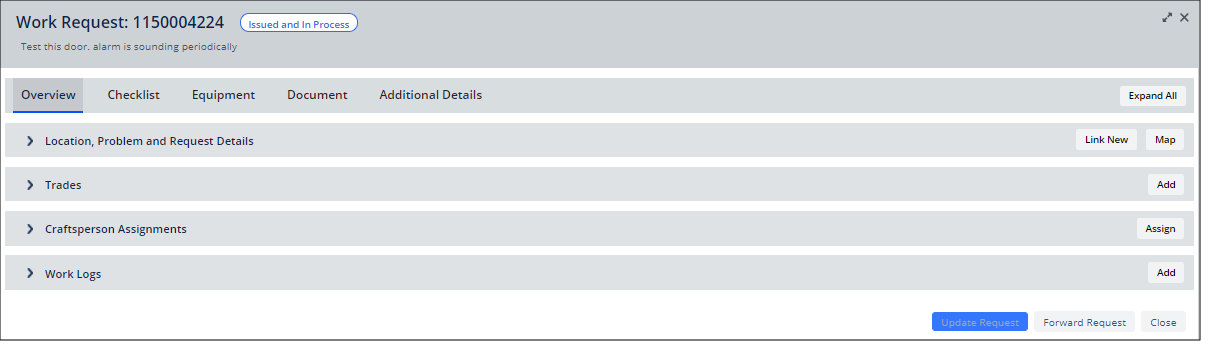
The exact tabs and panels the form displays depends upon the individual work request. For example, a request without an associated equipment item or checklist does not include the Checklist and Equipment tabs. The below image shows all available tabs.
Hide panels shown on the Work Request form
Since a lot of information is tracked with work requests, you have the option to control the details presented by the Work Request form. This control helps you focus on the information tracked at your site.
From the Options menu (gear icon), select the Show/Hide Work Request Details command to hide various panels on the tabs. .

The Show/Hide Work Request Details command presents the below form. Select a type of information to hide by clearing its checkbox. Hiding a category of information hides the panel.
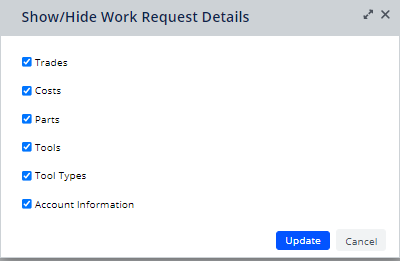
Selecting these options sets the following application parameters:
-
AbBldgOpsOnDemandWork-ShowPartsInWrDetails
-
AbBldgOpsOnDemandWork-ShowToolsInWrDetails
-
AbBldgOpsOnDemandWork-ShowToolTypesInWrDetails
-
AbBldgOpsOnDemandWork-ShowCostssInWrDetails
-
AbBldgOpsOnDemandWork-ShowTradesInWrDetails
-
AbBldgOpsOnDemandWork-ShowAccountInfoInWrDetails
Overview tab
The above image shows the panels that display on the Overview tab. Use a panel's Add and Assign buttons to add the corresponding details to the work request. For example, click Assign in the Craftspersons panel to access a form for assigning a craftsperson to the work request.
The Overview tab's "Location, Problem, and Request Details" panel is open by default and provides key summary and editable data about the request.

Checklist Tab
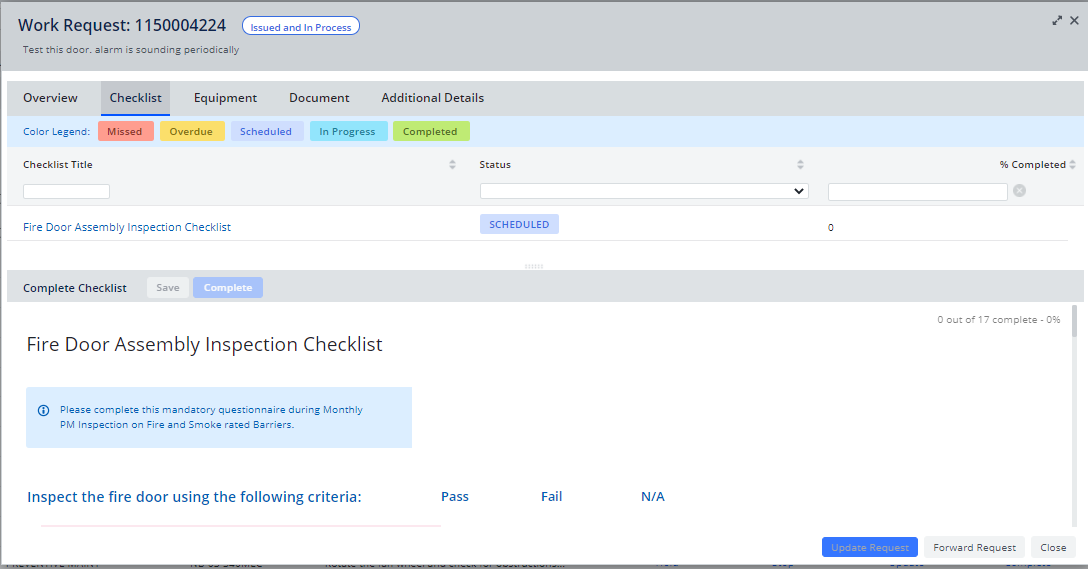
If the work request has associated checklists, the first checklist displays in this tab so that you can complete or review it. While checklists can be accessed from the Checklist option on the Maintenance Console's grid, craftspersons and supervisors may find it convenient to access it from the Work Request form so that they do not need to return to the Maintenance Console.
Equipment Tab
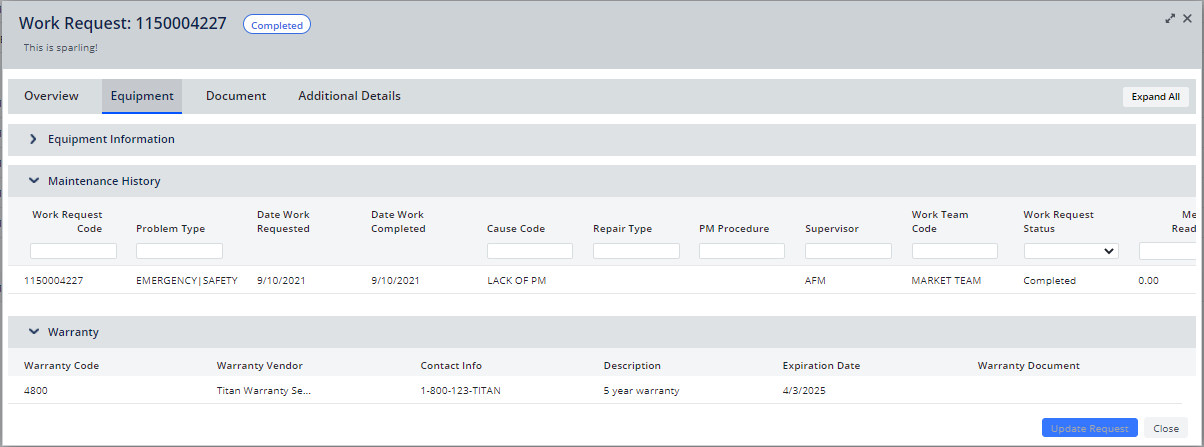
If the work request pertains to an equipment item, use this tab to access all of the equipment information from one convenient location. Warranty and Maintenance History panels are included if this information exists. Note that documents pertaining to equipment are stored on the Documents tab.
Document Tab
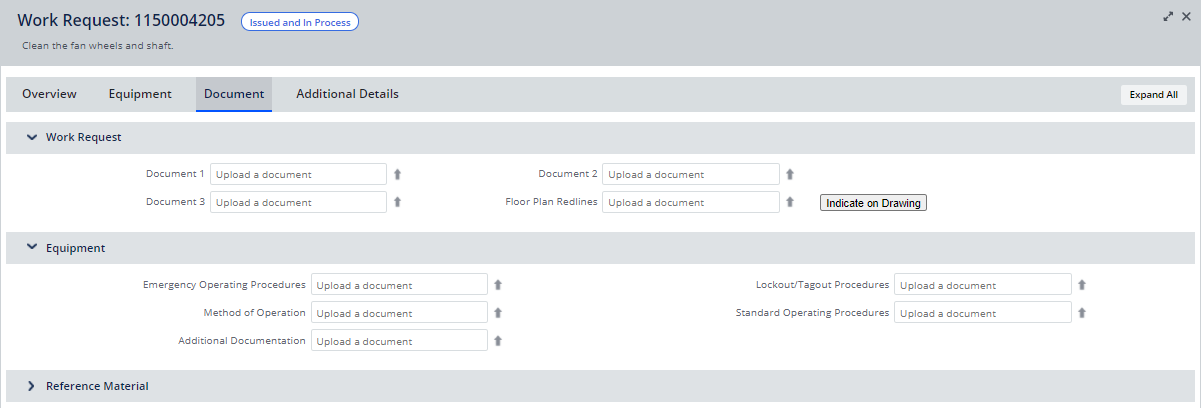
Use this tab to upload documents pertaining to the work request, as well as to review associated documents.
- The Equipment section shows documents associated with the equipment item to which the work request pertains. For example, an owner's manual might be associated with an equipment item. For information on equipment documents, see Tabbed Equipment Form.
- The Reference Material section lists any reference documents that are associated with a work request's Problem Type or PM Procedure. For information, see Managing Reference Documents.
Additional Details Tab
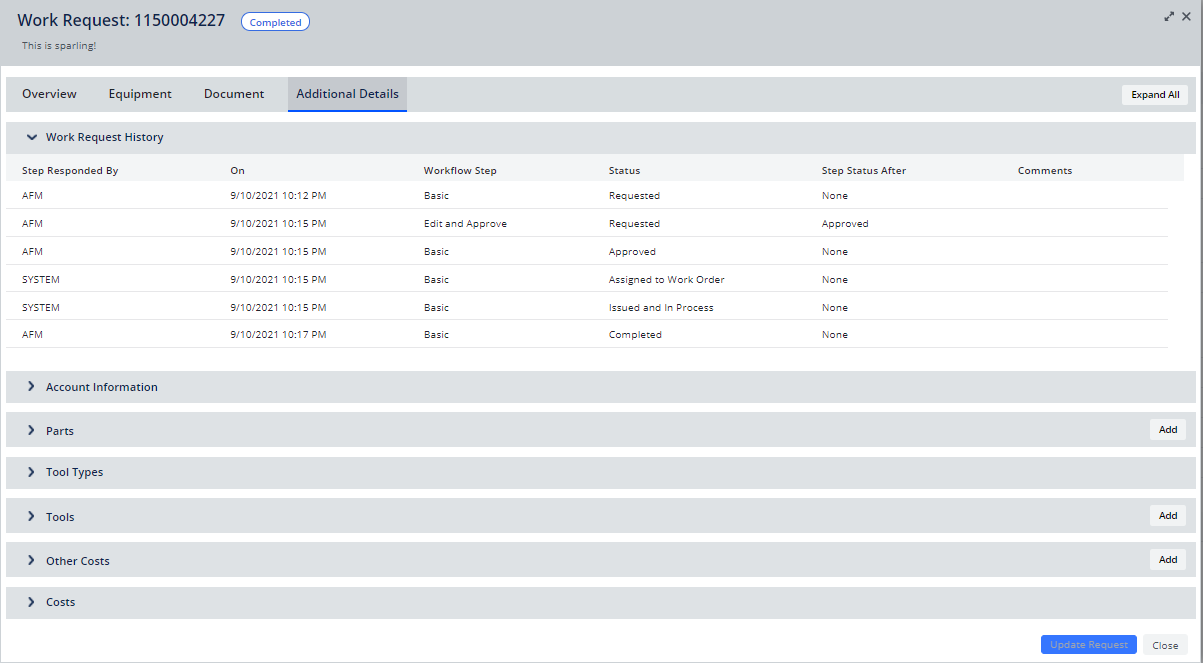
This tab stores all remaining information for the work request. Use the Add buttons to add further details to the work request, such as an additional cost incurred during the work cycle.