
A manager needs to enter the users who are authorized to log into Archibus Workplace, the cloud modules, and log in as a Foundations Manager. Users can be internal employees, outside contractors, craftspersons, and so forth. Create a User record for any person who should be able to access the Archibus system.
The Archibus Users table stores the parties who are authorized to sign into the Archibus system and to receive email notifications. The Archibus Users table stores the password, email address, user identity, and so on. The sign-in process uses this information when users sign in to Archibus.
Typically, a party designated as an Archibus user will also exist in one of three Archibus tables:
This topic has the following sections:
There are a few methods for accessing the Archibus Users table:
| User | Sample User | Task | Path | View File | Access to Users | Notes |
|---|---|---|---|---|---|---|
| Cloud Administrator |
AFM-CLI | Define Users | System Administration / Archibus System Administration / Cloud Administrator | ab-ess-def-users.axvw |
Excludes users that are assigned the following roles, as these roles are for power users:
|
View has a filter. |
| Cloud Partner Administrator | AFM-BP | Add and Edit Users | System Administration / Archibus System Administration / Archibus Administrator - User and Security | ab-edit-users.axvw |
Excludes users that are assigned the following role:
|
For information on this view, see Add and Edit Users. |
| System Administrator |
ADMIN | Add and Edit Users | System Administration / Archibus System Administration / Archibus Administrator - User and Security | ab-edit-users.axvw | Can access all users |
For information on this view, see Add and Edit Users. |
Archibus Cloud sample users AFM-FDN and AFM-MOD do not have access to the Define Users task.
When exploring Archibus using the sample roles, you can provide the sample AFM-FDN and AFM-MOD users access to defining users. This must be done by a Cloud Partner Administrator or Cloud Administrator.
Since the AFM-FDN and AFM-MOD users are assigned to these roles, they will now be able to access the Define Users task.
Load the Define Users task or Add and Edit Users task, using one of the above paths; the left panel offers valuable information about the users defined for your system. Click on a user, and you see other details in the right pane.
Use the filter at the top of the view to restrict the user list by role (Archibus Foundations Manager or self-service user) or by vendor, craftsperson, or employee.
Since user records are connected with records in the Craftspersons, Vendors, and Employees tables, the Define Users view can present information from these tables to help you identify and understand User records. For example, in the below image, the Employee Name and Vendor fields display values from the Employees and Vendors table for this user. The Building Name value comes from the Employees table. As you can see, this image shows that one user is also a vendor (Vendor field), and that the other users are employees (Employee Name field)
You can use the gear-shaped icon to display the below additional fields in the left panel. Displaying these fields may help you identify the type of user you are examining.
You can also use the restriction filter and restrict by Employee, Craftsperson, or Vendor to see a user's connection to other tables.
For information on the sample users in the HQ project, see Sample Users for Archibus Foundations.
| Field | Description |
|---|---|
| User Name |
The user will use this value to sign into the Archibus system. |
| Role Name |
The role defines the Archibus features that the user can access. For information on roles, see Working with Roles (in System Management Help). For Archibus Foundations, you typically assign these roles:
When administrators assign users to roles, they can assign only to the roles with access at the administrator's level or below. For example, a Client Administrator can not assign a user to "System Administrator" role. This is to prevent them from assigning themselves to a high level role then gaining access to high security level that they should not have. The hierarchy of roles, from lowest to highest, is:
|
| Password | Enter the password that the user will use to sign into the system. |
| Number of Failed Login Retries Attempted |
This is the number of times the user tried to login and failed. On successful login, the Sign-in page sets the value to zero. The system administrator can unlock a locked user account by clicking the "Reset" button, and then clicking Save. This sets the value back to zero. |
| Email Address | Archibus can automatically send email messages about the status of an item. This value is necessary for email notifications and for connecting the user to a record in the Employees, Vendors, or Craftspersons tables. Be sure to complete this field if you wan the Archibus applications to send email messages to this user. The value you enter must match the value in the corresponding Employees, Craftspersons, or Vendors table for this user. |
| Locale | Select a Locale for the user. This controls the country, language, date format, and currency that you use with Archibus. See Set Sample Archibus Foundations Users to Non-English Locales |
| Create Employee? | If you have not yet used the Define Employees view to enter an employee, select this option and the system will create a record in the Employees table and complete Employee Code with the same value that you specified in the User Name field and will complete the Email Address field in the Employees table with the same value as you specified for the user. |
If you have made changes that affect a role assignment, click Flush Cached User Accounts and Roles to flush all cached user roles for the current project so that the changes can take effect.
http://<server>/archibus/workplace.Note: Any user can access Archibus Workplace by selecting the "Sign in as Guest" option on the Archibus sign-in page. They are actually signing in as the GUEST user, defined in the Archibus Users table. For details, see Signing into Workplace.
Department managers have a slightly different Workplace interface which provides the ability to:
There is not a special role for department managers. Employees established with the below procedure have access to the manager features of Archibus Workplace.
http://<server>/archibus/workplace. A user may be attempting to sign into Archibus but not entering the correct password or user name. If a user attempts too many times, the system will lock them out. When this happens, a system administrator needs to unlock the account. To do so, click the Reset button, located next to the Number of Failed Login Retries Attempted field. This sets the Number of Failed Login Retries Attempted value back to 0.
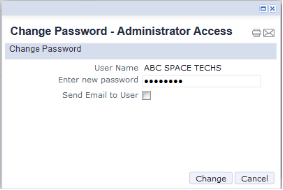
The sign-in form counts the number of times a user fails to sign in because they are using an invalid password. If the user tries too many times, the sign-in form locks out the user and presents the message “Too many failed password attempts. Request that your system administrator reset your password.” In this case, the system administrator can reset the password for the user.
| Copyright © 1984-2020, Archibus, Inc. All rights reserved. |